

How to Check for Errors from your New iPhone
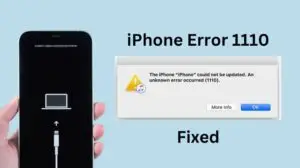
1. Check for Setup or Activation Issues
Make sure your iPhone activates properly with your Apple ID. If you see errors like “Unable to Activate” or “SIM not supported”, restart your phone and try again.
2. Run an iPhone Diagnostic Test
Apple has a built-in diagnostics tool:
Open Safari on your iPhone. Go to 👉 https://diagnostics.apple.com. Sign in with your Apple ID. Follow instructions to run Apple Diagnostics (it checks for hardware issues like battery, sensors, or display problems).
3. Check for Software Errors
Go to Settings > General > Software Update → install the latest iOS. If apps keep crashing, check for app updates in the App Store.
4. Test Key Hardware Functions
Screen & Touch → Try swiping, tapping, zooming. Speakers & Microphone → Play music and record a voice memo. Cameras → Open Camera, test photo & video (front & back). Battery Health → Settings > Battery > Battery Health & Charging. Face ID / Touch ID → Set it up and confirm it unlocks smoothly.

5. Check for Error Logs
Go to Settings > Privacy & Security > Analytics & Improvements > Analytics Data. If you see repeated crash logs for the same app/system process, something may be wrong.
6. Run Apple Support App Test (Optional)
Download Apple Support app from the App Store. Tap Get Support > iPhone > Run Diagnostics. This will run checks and send results to Apple if needed.
If you find any issues, contact Apple Support or visit an Apple Authorized Service Provider while your iPhone is still under warranty.




Related Articles

TikTok US Operations Shift to New Joint Venture
The social media landscape is experiencing a significant shift as ByteDance, the...

Apple Announces New iOS Features and Changes in Japan
Apple updates offer enhanced options for developers to distribute apps and handle...

Today’s Money Tip
Shop the Store Where Lost Airline Luggage Ends Up Ever wonder what...

US Black Friday 2024 Sets New Record With $11.8 Billion in Online Sales — Adobe Analytics
Nov 29 (Techy Solutions) – AI-powered shopping tools helped drive a surge...