

Tech Innovations
Discover breakthrough tech innovations, emerging technologies, smart solutions, and future-driven ideas shaping the digital world.

Artificial Intelligence and the New Era of Human Expertise
Welcome to the first edition of The Intelligence Shift, a monthly series that explores how artificial intelligence is transforming the meaning of expertise, authority, and knowledge.
In this opening article, we examine the rapid rise of synthetic intelligence, the gradual decline of traditional authority, and the emerging human abilities that will matter most in an age where machines produce answers and people interpret meaning.
For centuries, human expertise fueled progress. Society relied on doctors to diagnose illness, lawyers to interpret laws, teachers to guide learning, and engineers to design infrastructure. Expertise represented far more than technical skill—it formed a social contract. People believed knowledge lived inside individuals who earned it through years of education, discipline, and real-world experience.
However, a profound shift has begun.
Artificial intelligence now changes not only how we access information but also how we define knowledge itself. When a machine can summarize textbooks, construct legal arguments, or generate business strategies within seconds, an unavoidable question emerges:
What does it mean to be an expert in a world where intelligence no longer belongs exclusively to humans?
This transformation does not tell a story of replacement. Instead, it reveals a story of redefinition. Authority, trust, and meaning are shifting beneath our feet.
1. Expertise Once Meant Scarcity; Now It Means Abundance
Throughout most of human history, knowledge remained difficult to access. Several barriers restricted learning:
- geography
- institutional control
- limited literacy
- restricted mentorship
- time-intensive education
Because learning progressed slowly and unevenly, expertise remained rare.
Artificial intelligence has dramatically changed that reality.
Today, a teenager with a smartphone can instantly access:
- medical explanations
- legal frameworks
- coding tutorials
- philosophical discussions
- scientific summaries
- business strategies
As a result, the appearance of expertise now surrounds us—fast, fluent, and confident.
However, this accessibility creates a paradox.
When everyone gains instant answers, the value of simply knowing information decreases.
Modern expertise no longer revolves around possessing facts. Instead, it revolves around interpreting knowledge, placing it in context, and challenging assumptions.
2. The Illusion of Competence With Artificial Intelligence
AI systems communicate with remarkable confidence. They generate structured arguments, polished explanations, and clear reasoning. Rarely do they hesitate unless users explicitly request uncertainty.
Consequently, these systems create a powerful illusion:
Fluency often disguises misunderstanding.
When people read coherent AI responses, they often feel knowledgeable. However, clarity does not equal comprehension.
Consider the education system. Memorization may help students pass exams, yet genuine understanding requires deeper thinking and interpretation.
AI introduces a new cognitive trap:
- People outsource thinking.
- They absorb the generated answer.
- They assume the knowledge belongs to them.
The danger does not lie in AI replacing experts.
The danger lies in convincing non-experts that they possess expertise.
3. The Erosion of Trust
As artificial intelligence performs increasingly complex tasks, people begin to question the value of human expertise.
Today AI systems can:
- write code
- analyze data
- draft reports
- interpret documents
- generate creative ideas
Consequently, traditional authority structures begin to weaken.
Students challenge teachers with AI-generated arguments. Patients arrive with machine-generated diagnoses. Employees question managers because “the model suggested another answer.”
Previously, expertise relied on a simple statement:
“I know this because I studied it.”
Now many people believe:
“I know this because the system confirmed it.”
Yet AI does not function as a neutral authority. Every model reflects the biases, gaps, and assumptions embedded in its training data.
Therefore, when trust shifts entirely from humans to machines, society risks losing something critical—the ability to question the origin of knowledge itself.
4. The New Role of the Expert
If machines generate answers instantly, what role remains for human experts?
Experts should not compete with AI in memorizing information. They should not attempt to produce faster summaries either.
Instead, the expert of the future will become:
- a navigator of uncertainty
- a critic of machine-generated conclusions
- a contextual interpreter of information
- a guardian of nuance
- a translator between human values and machine logic
In other words, the most valuable expert will not know the most facts.
The most valuable expert will understand what knowledge actually means.
This shift marks a major transformation—from expertise as possession to expertise as interpretation.
5. The Rise of Synthetic Knowledge
Another important transformation has already begun.
Artificial intelligence increasingly learns from:
- synthetic datasets
- model-generated text
- machine-produced examples
As a result, AI systems increasingly learn from other AI systems.
This recursive loop creates a new category of knowledge—synthetic, self-referential, and increasingly detached from human experience.
This development raises difficult questions:
- What happens when machines produce the majority of information?
- Who verifies that knowledge?
- How can experts detect errors that spread through automated systems?
- What defines expertise when human observation no longer anchors knowledge?
Society has not yet developed answers to these questions.
Nevertheless, we must begin asking them now.
6. Human Skills That Grow More Valuable
Despite enormous technological progress, artificial intelligence cannot replicate certain forms of expertise.
Not because they require complex algorithms.
Because they require human experience.
These capabilities include:
- judgment
- ethical reasoning
- empathy
- lived experience
- emotionally grounded creativity
- cultural awareness
- the courage to challenge assumptions
AI produces answers.
Humans create meaning.
Therefore, the future will favor people who successfully bridge machine intelligence and human insight.
7. A New Social Contract for Artificial Intelligence Knowledge
Humanity now enters a new relationship with intelligence.
Previously, society followed a simple model:
Experts knew. Everyone else followed.
The emerging model looks very different:
Machines generate information. Humans interpret it.
Consequently, this transformation demands significant adjustments:
- new education systems
- updated professional standards
- stronger ethical frameworks
- better methods for verifying truth
- new expectations for expertise
Human expertise does not disappear.
Instead, it evolves.
The Bottom Line: Expertise Is Transforming
Artificial intelligence has not destroyed expertise.
Instead, it has exposed its true nature.
Expertise never meant:
- memorizing information
- retrieving facts quickly
- generating answers instantly
True expertise involves:
- discernment
- contextual understanding
- interpretation
- wisdom
- the ability to recognize what machines overlook
The age of artificial intelligence does not weaken human intelligence.
Instead, it demands a deeper, more reflective version of it.
We are not witnessing the end of expertise.
We are witnessing the end of old expertise—and the emergence of something far more complex, nuanced, and powerful.
Welcome to The Intelligence Shift.
See Also: Controlling the Connectivity Stack: G+D Reveals New Innovations at MWC
See Also: AI-Iran War Videos Go Viral as Creators Cash In on New Tech
Related Post: China pins hopes on society-wide AI push to add jobs, rejuvenate economy
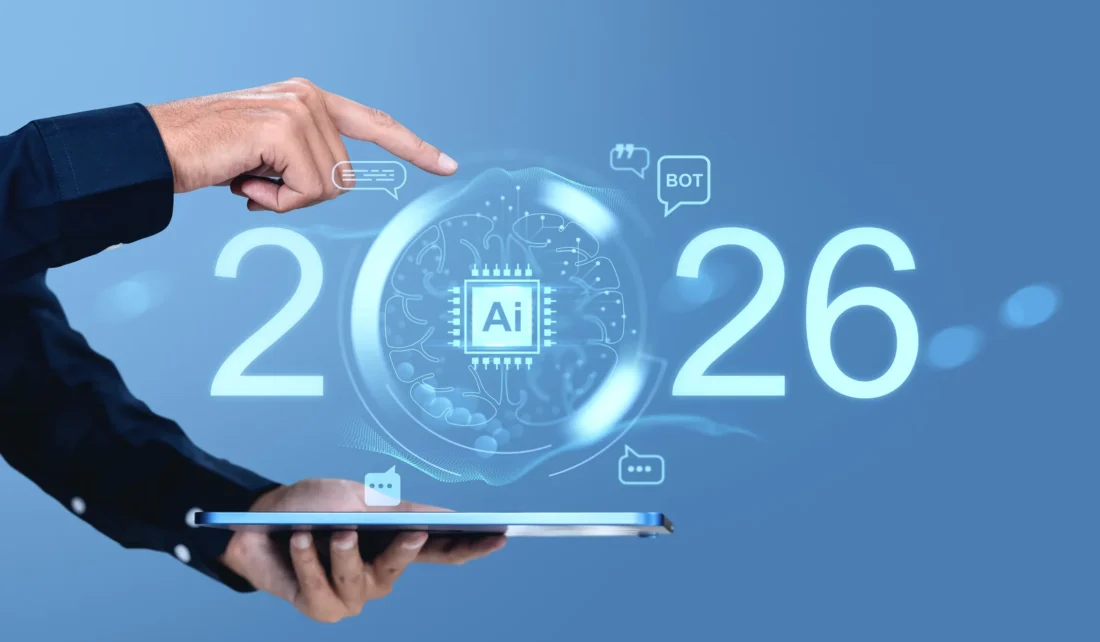
Technology Trends 2026 That Will Shape the Future
Self-driving vehicles, humanoid robots, AIs trained in space, and the possible successor to the smartphone all in the Technology trends 2026.
As the emergence of ChatGPT in late 2022, a strong sense of rapid technological acceleration has been experienced worldwide. However, major technological revolutions are rarely completed overnight. Instead, technological transformations are usually built gradually as new infrastructure is developed and social adoption increases for the Technology trends 2026.
According to Esteve Almirall, a professor at Esade and innovation expert, the coming years will mark a turning point. In an article published in La Vanguardia, it was explained that technological shifts require time because new infrastructure must be constructed before mass adoption occurs. In the past, global internet networks were built to support digital growth. Today, massive AI infrastructure and advanced data centers are being constructed to support artificial intelligence systems.
It has been predicted that 2026 will become a milestone year for technology trends, as artificial intelligence adoption will be expanded and digital transformation will accelerate across industries.
Below are the 12 technology trends 2026 that are expected to shape the global agenda.
1. Artificial Intelligence Will Continue to Expand
Artificial intelligence development can no longer be slowed. AI models are being improved rapidly, and major investments are being made by companies and governments worldwide in technology trends 2026.
The question is no longer whether AI will outperform humans in certain tasks. Instead, the global economy will be reorganized around this new reality. As a result, AI transformation will increasingly be treated as both an economic opportunity and a geopolitical competition.
2. AI Agents Will Become More Common
A major shift will be introduced through AI agents. Unlike traditional AI systems that only respond to instructions, intelligent agents will be designed to act independently.
Through language models and automated reasoning, tasks such as purchasing goods, planning travel, negotiating deals, and managing business operations will be handled automatically. By 2026, these systems are expected to be integrated gradually into everyday digital experiences.
3. Autonomous Mobility Will Reshape Cities
In many major cities in the United States and China, autonomous vehicles are already being deployed. Driverless taxis and delivery vehicles are being tested and expanded in urban areas.
As this technology continues to mature, fewer privately owned cars will be required. Consequently, urban design may be reshaped, congestion could be reduced, and transportation networks will be optimized.
4. Logistics Will Be Transformed in Technology trends 2026
A new era of logistics efficiency will be created through autonomous trucks and advanced battery technologies.
Lower transportation costs are expected to be achieved through sodium battery systems, which are cheaper and longer-lasting than traditional lithium batteries. As supply chains become shorter and more efficient, industries will gain stronger competitive advantages.
5. Humanoid Robots Will Enter the Workforce
The arrival of humanoid robots is expected to accelerate. These machines are already being developed to assist in factories, hospitals, and logistics centers.
According to predictions made by Lei Jun, CEO of Xiaomi, many roles currently performed by humans may eventually be supported or replaced by robots. Large-scale adoption is expected to begin gradually in the coming years.
6. Language Barriers Will Be Reduced
Real-time translation technology is being developed by major companies such as Apple and Google. Through smart headphones and AI-powered systems, conversations between people speaking different languages will be translated instantly.
Although language skills will still be valued, the barrier created by language differences will be significantly reduced.
7. Organizations Will Be Rebuilt Around AI
Businesses are expected to undergo significant structural transformation. Smaller teams may be supported by powerful digital systems, including AI agents, robotics, and automation tools.
In these hybrid workplaces, human workers will coordinate intelligent systems, while decision-making processes will increasingly be supported by data-driven platforms.
8. Artificial Intelligence Will Move Into Space
Space may become a new location for advanced computing. Due to favorable thermal and energy conditions, data centers in orbit could be established.
A recent collaboration between Nvidia and StarCloud has already demonstrated the possibility of training AI models in space. If launch costs continue to decline, space computing infrastructure could expand rapidly.
9. Telecommunications Will Expand Globally
Global communication networks are expected to be transformed. Mobile phones are already being connected directly to satellites through systems such as Starlink.
In addition, 10G network technology is currently being tested in China. These developments may significantly disrupt traditional telecommunications companies.
10. AI Scientists and Engineers Will Emerge
Artificial intelligence systems capable of conducting research independently are being developed. Through autonomous experimentation and analysis, scientific discovery could be accelerated.
This means that innovation capacity will no longer depend only on human expertise. Instead, AI-driven research systems will multiply scientific productivity.
11. The Successor to the Smartphone Is Being Explored
For years, companies have attempted to develop devices capable of replacing smartphones. Technologies such as virtual reality headsets and smartwatches have been introduced, but none has fully replaced the smartphone.
However, new attempts are now being made. OpenAI has recruited Jony Ive, the designer behind the iPhone and iPod, to explore the next generation of computing devices.
12. Hyperloop Development Will Continue in China
While several countries have abandoned the Hyperloop concept, China continues to invest in the technology.
High-speed transport systems capable of reaching speeds above 1,000 km/h are currently being researched. If successful, this transportation system could reshape regional economies and dramatically reduce travel time between major cities.
The technology trends 2026 highlight how rapidly innovation is advancing. Artificial intelligence, robotics, autonomous transportation, and advanced communication networks are being developed simultaneously.
As these technologies mature, industries will be transformed, new economic opportunities will emerge, and everyday life will be reshaped. Although these changes will not occur instantly, the foundation for the next technological era is already being built.
See Also:
US: Trump Warns Microsoft, Google, Other Tech Giants to “Stop Hiring In India”
Top iPhone Security Tips You Should Know in 2025
In today’s increasingly digital world, securing your iPhone is more important than ever. Whether you’re protecting personal data, banking apps, or private photos, iPhone users must stay proactive to prevent cyber threats. Apple continues to enhance iOS security, but there are still key steps you should take to stay protected.
In this guide, we’ll explore the top iPhone security tips for 2025 and how you can easily apply them.
1. Use a Strong Passcode (Not Just Face ID)
While iPhone Face ID and Touch ID are convenient, a strong passcode is still essential. Avoid using simple numbers like “1234” or birthdays. Instead:
- Use a 6-digit alphanumeric code in your iPhone.
- Avoid repeating digits or patterns.
- Enable “Erase Data” after 10 failed passcode attempts under
Settings > Face ID & Passcode.
Related: How to Reset Your iPhone if You Forgot the Passcode
2. Keep iOS Updated
Apple regularly releases iOS updates that patch iPhone security vulnerabilities. In 2025, staying on the latest iOS version is critical.
- Go to
Settings > General > Software Updateto check manually. - Enable automatic updates for both iOS and app updates.
Bonus Tip: Also update your apps frequently, as they may contain fixes for known security flaws.
3. Review App Permissions
Some iPhone apps request unnecessary access to your microphone, camera, or location. Here’s how to stay in control:
- Navigate to
Settings > Privacy & Security. - Review which apps access Camera, Microphone, Contacts, Location, etc.
- Disable permissions for apps that don’t need them.
Learn more: How to Free Up Storage Without Deleting Apps
4. Use Apple’s Advanced Data Protection (iCloud Encryption)
Starting with iOS 17 and beyond, Apple offers Advanced Data Protection for iCloud. This end-to-end encryption protects your data from unauthorized access—even Apple can’t decrypt it.
To enable:
- Go to
Settings > [Your Name] > iCloud > Advanced Data Protection.
This encrypts:
- Messages backups
- Photos
- Notes
- Device backups
5. Enable Two-Factor Authentication for Apple ID
2FA adds an extra layer of protection to your Apple ID and iCloud account. Always use two-factor authentication (2FA) and verify trusted devices regularly.
- Go to
Settings > [Your Name] > Password & Security. - Ensure 2FA is On and add backup phone numbers just in case.
Read also: How to Back Up Your iPhone to iCloud or Computer
6. Activate Lockdown Mode (For High-Risk Users)
If you’re a journalist, government official, or feel at risk of sophisticated cyberattacks, Lockdown Mode offers extreme protection.
To enable:
- Go to
Settings > Privacy & Security > Lockdown Mode.
What it does:
- Blocks message attachments
- Limits web browsing features
- Disables FaceTime from unknown numbers
This feature is available starting from iOS 16 and now improved in iOS 18 (2025).
7. Use a Private Relay or VPN for Browsing
iCloud Private Relay helps hide your IP address and browsing activity in Safari.
To activate:
- Go to
Settings > [Your Name] > iCloud > Private Relay.
Alternatively, consider a trusted VPN app if you use third-party browsers or need more flexible location options.
8. Disable USB Accessories When Locked
Hackers may use USB accessories to access your phone without your knowledge.
- Go to
Settings > Face ID & Passcode. - Scroll to USB Accessories and toggle Off.
This prevents unauthorized devices from connecting when your iPhone is locked.
9. Turn Off Location Services for Unnecessary Apps
Too many apps track your location, which can be risky. To limit this:
- Go to
Settings > Privacy & Security > Location Services. - Set apps to “While Using” or “Never”.
- Use Share My Location only when necessary.
10. Use Built-In Password Manager (Keychain)
Stop using the same passwords for every app or website. Apple’s iCloud Keychain helps store strong, unique passwords securely and alerts you of breaches.
- Manage it via
Settings > Passwords. - Enable Security Recommendations for compromised passwords.
Helpful: Best Antivirus Tools for iPhone and iPad in 2025
In 2025, iPhone security is not just about setting a passcode it’s about being vigilant, informed, and proactive. By following these top tips, you can ensure your data, identity, and privacy stay protected.
Remember: Security starts with awareness. Share this post with fellow iPhone users and check your settings today!
Related Posts:
- How to Set Up and Use Apple Cash on iPhone
- How to Free Up iPhone Storage Without Deleting Apps
- How to Back Up Your iPhone to iCloud or Computer
- US draws up strict AI guidelines amid Anthropic clash,
- The most important Google setting you aren’t using
iPhone Storage Tricks to Free Up Space Without Deleting Apps
Is your iPhone constantly showing the “Storage Almost Full” warning, but you don’t want to delete your favorite apps? You’re not alone. With photos, videos, system files, and cached data piling up, it’s easy to run out of space quickly.
In this 2025 guide, we’ll show you exactly how to free up storage space on your iPhone without deleting apps using smart iOS tools and hidden settings to reclaim valuable memory and improve your device’s performance.
Why Is iPhone Storage Full Even with Few Apps?
Many users wonder why their storage is full even though they haven’t installed too many apps. Here’s why:
- Photos and videos take up a huge portion of space
- System files and iOS updates grow over time
- App caches, messages, and attachments build up silently
- Downloaded media (from WhatsApp, Safari, Mail) eats into space
The good news? You can fix it without deleting apps.
10 Smart Ways to Free Up iPhone Storage Without Removing Apps
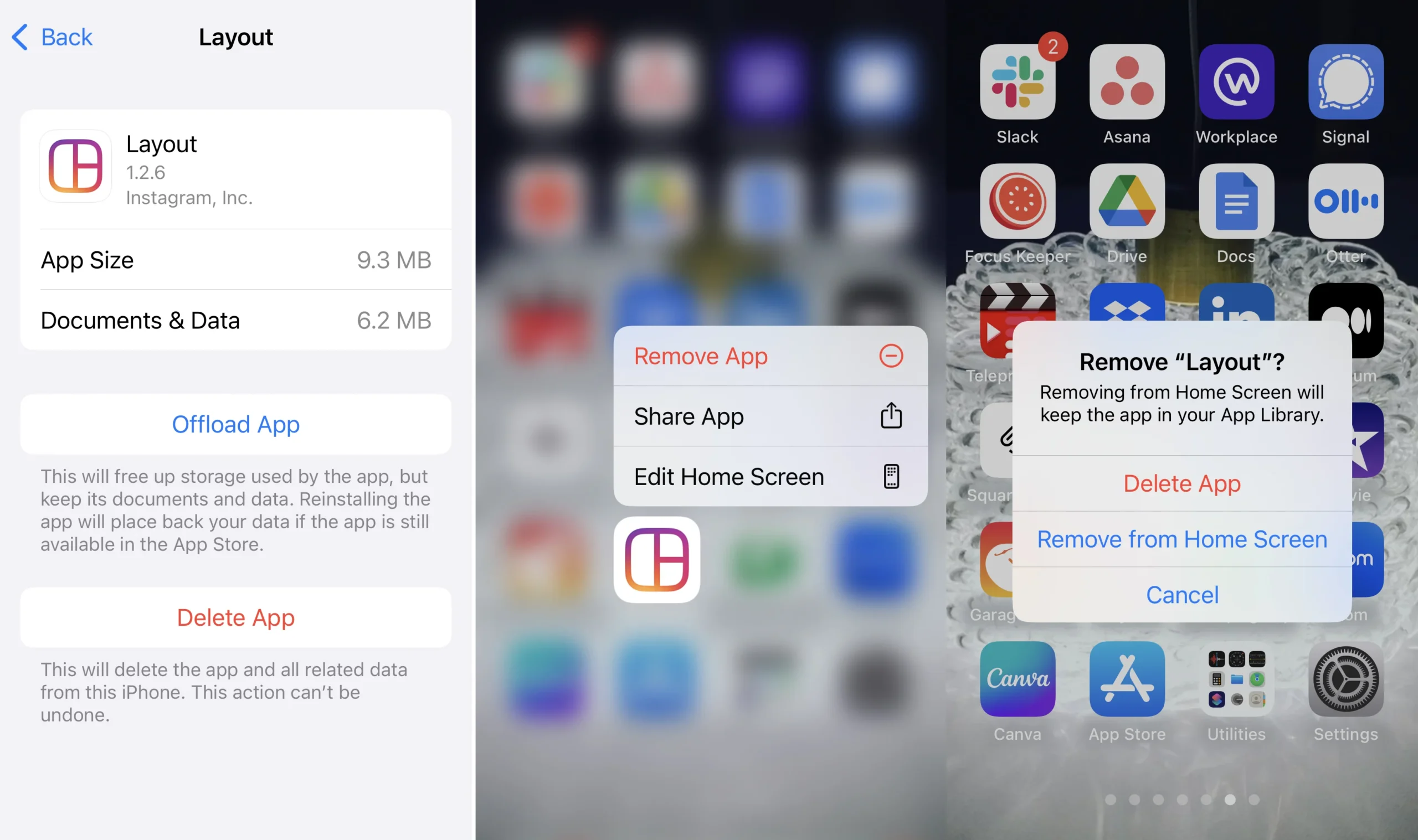
1. Offload Unused Apps (Without Deleting Data on iPhone storage)
- Go to Settings > General > iPhone Storage
- Tap on apps you rarely use
- Select “Offload App”
This removes the app itself but keeps all your data and documents. You can re-download the app later without losing anything.
2. Optimize Photo Storage with iCloud
- Go to Settings > Photos
- Enable “iCloud Photos”
- Select “Optimize iPhone Storage”
Your full-resolution photos are stored in iCloud, while smaller, space-saving versions remain on your device.
3. Delete Old Message Attachments
- Go to Settings > Messages > Keep Messages
- Change setting from Forever to 1 Year or 30 Days
- In Messages > Photos/Attachments, manually delete large files
Tip: You can sort message attachments by size in iOS 17.
4. Clear Safari Cache and Website Data
- Go to Settings > Safari
- Tap Clear History and Website Data
This removes cached files, cookies, and browsing history that can take up space.
5. Manage Downloads and Email Attachments
- Open the Files app
- Navigate to the Downloads folder and delete unused files
- In Mail settings, limit automatic download of attachments
6. Remove Offline Media from Apps
Apps like Spotify, Netflix, and YouTube store downloaded content:
- Open the specific app
- Find offline downloads and remove what you no longer need
You keep the app just free up the media inside it.
7. Use Apple’s “Recommendations” in iPhone Storage Settings
- Go to Settings > General > iPhone Storage
- Check the Apple storage recommendations
- Tap to enable space-saving features like Review Large Attachments or Empty Recently Deleted Album
8. Enable Auto Delete for Old Conversations
- Go to Settings > Messages
- Enable Auto-Delete Old Conversations
This keeps your device clutter-free from years of unused chats.
9. Delete System Junk via Restart or Update
Sometimes, temporary files and cache are cleared automatically with:
- A simple restart of the iPhone
- Installing the latest iOS update under Settings > General > Software Update
10. Use iCloud or External Storage for Files
Consider moving files to:
- iCloud Drive
- Google Drive / Dropbox
- External flash drives (via Lightning or USB-C)
Perfect for backing up videos, photos, and documents without deleting anything.
Related Posts You’ll Find Helpful:
- How to Back Up iPhone to iCloud or Computer (2025 Guide)
- How to Set Up Your New iPhone and Transfer Data Easily
- Best Cloud Storage Options for iPhone Users in 2025
- Top iPhone Performance Tips to Boost Speed and Battery Life
Running out of space on your iPhone doesn’t mean you have to delete your favorite apps. With these smart iOS features, you can free up storage without deleting anything essential. Whether you’re optimizing photos, clearing caches, or offloading unused content, you now have full control over your iPhone’s storage.
See More : Top iPhone Security Tips You Should Know in 2025
How to Back Up Your iPhone to iCloud or Computer (2025 Guide)
US mulls new rules for AI chip exports, including requiring US investments by foreign firmshttps://www.reuters.com/world/us-mulls-new-rules-ai-chip-exports-including-requiring-investments-by-foreign-2026-03-05/
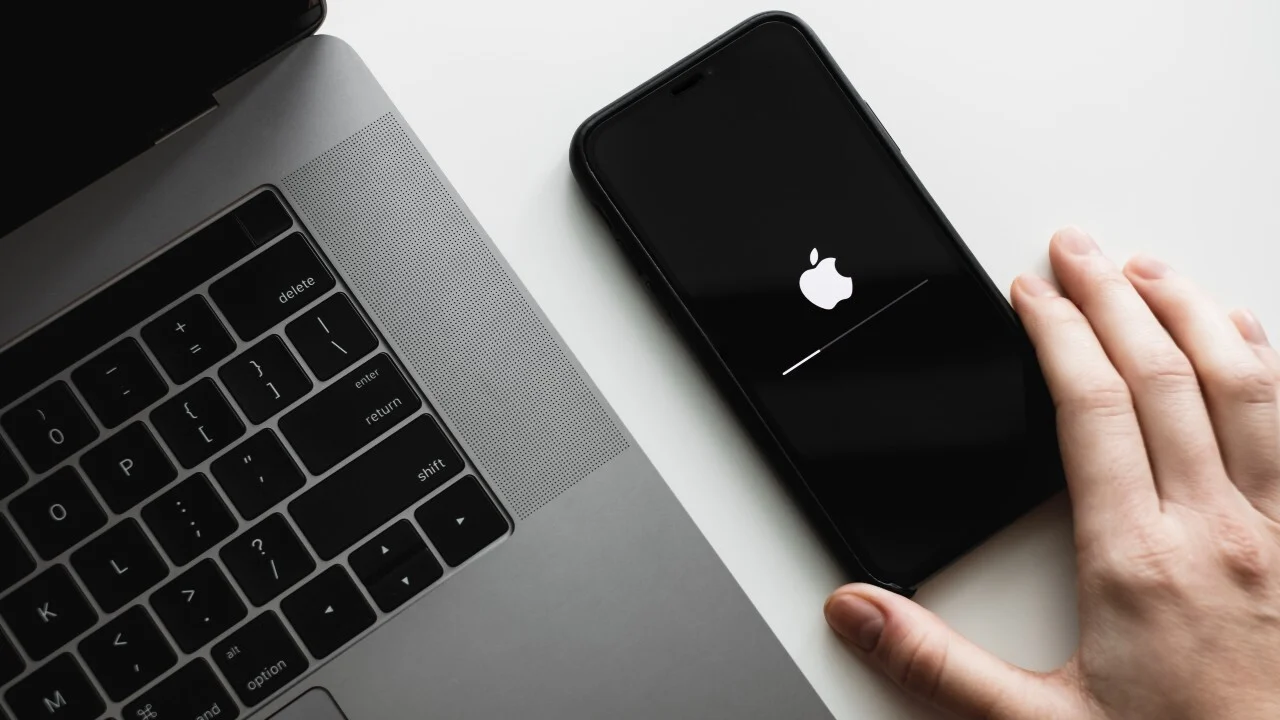
iCloud Backup: How to Back Up Your iPhone to iCloud or Computer (2025 Guide)
iPhone’s iCloud backup is one of the most important things you can do to protect your data including your photos, messages, contacts, and settings. Whether you’re upgrading to a new iPhone, troubleshooting an issue, or just playing it safe, having a reliable backup is essential.
In this 2025 step-by-step guide, we’ll show you how to back up your iPhone to iCloud or your computer using the latest iOS features. No data loss, no confusion—just safe, secure backups made easy.
Why You Should guarantee iCloud Backup on Your iPhone Regularly
Your iPhone stores a lot of personal data and losing it can be costly. Backing up protects:
- Photos and videos
- Contacts and call history
- Messages (iMessage, SMS, WhatsApp)
- App data and settings
- Health and fitness data
- Wallet and Apple Pay info
Whether you choose iCloud or a local backup to your computer, the goal is the same: keeping your data safe and restorable at any time.
Method 1: How to iCloud backup in your iPhone (Wireless)
iCloud backups are automatic, secure, and convenient; no cables required.
Steps to Back Up to iCloud:
- Go to Settings > [Your Name] > iCloud.
- Tap iCloud Backup.
- Make sure iCloud Backup is turned ON.
- Tap “Back Up Now” to start a manual backup.
- Keep your iPhone connected to Wi-Fi and power until the process finishes.
iCloud Backup Tips:
- You get 5GB of free storage; upgrade to iCloud+ for more space.
- iCloud automatically backs up daily when your iPhone is:
- Connected to Wi-Fi
- Plugged in
- Locked
To check your latest backup:
Go to Settings > iCloud > iCloud Backup, and look under “Last successful backup.”
Method 2: How to Back Up iPhone to a Computer (Mac or Windows)
Prefer offline backups or need full control over your files? Use your computer and Finder (macOS) or iTunes (Windows).
🔹 For macOS Catalina or later (Finder):
- Connect your iPhone to your Mac via USB.
- Open Finder and select your device under “Locations.”
- Click “General” and select “Back up all of the data on your iPhone to this Mac.”
- To encrypt your backup (recommended), check “Encrypt local backup.”
- Click “Back Up Now.”
🔹 For Windows or older Macs (iTunes):
- Open iTunes and connect your iPhone.
- Click the device icon at the top left.
- Under Backups, choose “This computer” and click “Back Up Now.”
- To encrypt, check “Encrypt iPhone backup.”
✅ You can find backups later in iTunes Preferences or Finder > Manage Backups.
iCloud vs. Computer Backup: Which Is Better?
| Feature | iCloud Backup | Computer Backup |
|---|---|---|
| Storage Limit | 5GB free, paid plans | Depends on disk space |
| Access | Wireless, anywhere | Requires cable & PC |
| Security | Encrypted by default | Optional encryption |
| Backup Speed | Slower over Wi-Fi | Faster via USB |
Choose iCloud for convenience, or computer backup for full control.
How to Restore iPhone from Backup
- During iPhone setup, choose “Restore from iCloud Backup” or “Restore from Mac/PC.”
- Sign in with your Apple ID or connect your device to your computer.
- Select the backup you created and follow the prompts.
🔁 You can also restore backups after resetting your iPhone under Settings > General > Transfer or Reset iPhone.
Related Blog Posts:
- How to Set Up Your New iPhone and Transfer All Your Data Easily
- Backing up and restoring from the cloud
- US draws up strict AI guidelines amid Anthropic clash,
- China warns of global chip shortages as Nexperia dispute escalates again
Backing up your iPhone is no longer optional it’s essential. With iCloud or computer backups, you have the peace of mind that your digital life is safe and ready to restore whenever you need it. Choose the method that fits your workflow and back up regularly to avoid losing precious memories and vital information.
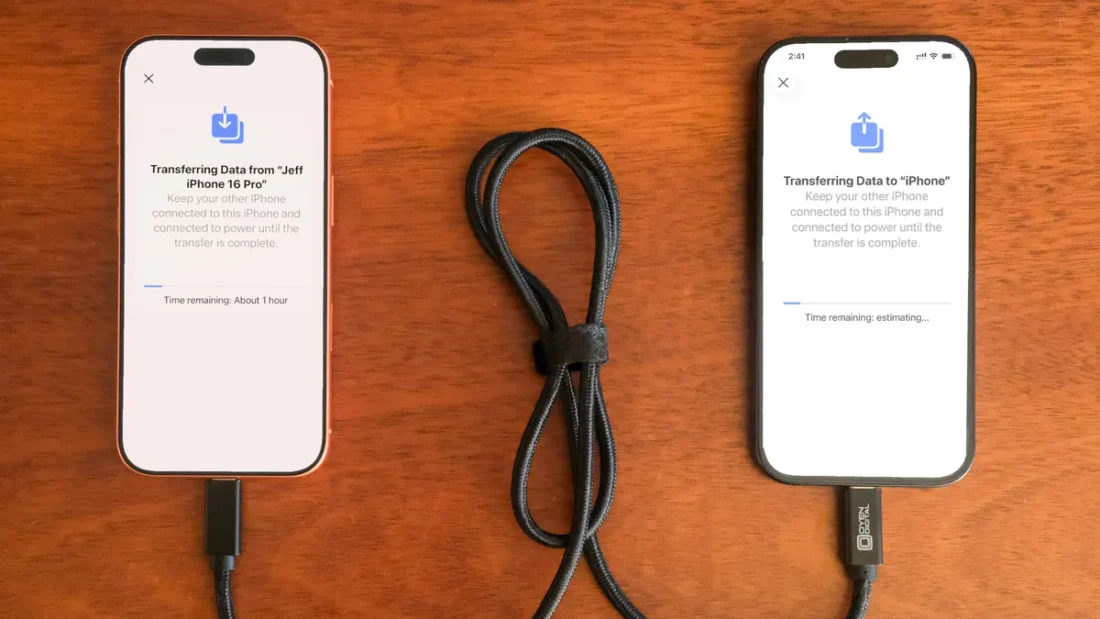
Transfer Your Data to a New iPhone: Easy Setup Guide
Upgrading to a new iPhone? Whether you’re switching from an old iPhone or coming from Android, Apple makes it incredibly simple to transfer your data and set up your new device. In this guide, you’ll learn how to transfer everything to your new iPhone including contacts, messages, apps, photos, settings, and more without losing any data.
Let’s explore the easiest and most secure ways to get your new iPhone up and running in minutes.
What You Need Before You Begin to Transfer your data
Before you transfer your data, make sure you have:
- Both your old and new iPhones (or Android phone if switching)
- A stable Wi-Fi connection
- Apple ID and password
- iCloud backup or Lightning/USB-C cable (optional for Quick Start)
- The latest iOS version installed (recommended)
Method 1: Use Quick Start to Transfer your data from iPhone to iPhone
Best for: iPhone to iPhone transfers with minimal hassle
Quick Start is the easiest way to transfer data wirelessly when setting up a new iPhone.
Steps:
- Turn on your new iPhone and place it near your old iPhone.
- On your old device, a Quick Start screen will appear. Tap Continue.
- Use your old iPhone to scan the animation on your new iPhone.
- Follow the on-screen steps to set up Face ID or Touch ID.
- Choose “Transfer from iPhone” to move your data directly.
⏱️ Time required: Depends on data size. Make sure both devices stay connected to Wi-Fi and power.
Method 2: Use iCloud Backup to Transfer Data
Best for: Backing up and restoring from the cloud
If you backed up your old iPhone to iCloud, you can restore it during the new iPhone setup.
Steps:
- On your old iPhone, go to Settings > [Your Name] > iCloud > iCloud Backup.
- Tap “Back Up Now” and wait for the backup to finish.
- Turn on your new iPhone and follow the setup instructions.
- On the Apps & Data screen, select “Restore from iCloud Backup.”
- Sign in with your Apple ID and select the latest backup.
🔐 Your apps, photos, settings, and messages will restore automatically.
Method 3: Use a Cable to Transfer Data (Wired Transfer)
Best for: Faster data transfers with large files
If you prefer a wired connection:
- Connect your old and new iPhones with a Lightning-to-USB-C or Lightning-to-Lightning cable.
- During setup, choose “Transfer from iPhone” and follow the prompts.
- Keep both devices connected until the transfer completes.
🚀 This method is faster than wireless and ideal for devices with lots of content.
Switching from Android? Use “Move to iOS” App
Steps:
- Download Move to iOS from Google Play Store on your Android phone.
- During iPhone setup, select “Move Data from Android”.
- Follow the on-screen prompts on both devices.
- Transfer contacts, messages, photos, calendars, and more.
💡 Tip: Disable iMessage on your Android before switching to avoid missing texts.
Final Tips for a Smooth Setup
- Make sure Bluetooth and Wi-Fi are enabled on both devices
- Keep devices plugged in to avoid battery loss during transfer
- Update your apps after the transfer completes
- Double-check that important data like health records or messages have fully synced
Related Posts You Might Like:
- How to Back Up Your iPhone to iCloud or Computer (2025 Guide)
- How to Free Up Storage Space on iPhone Without Deleting Apps
- Top iPhone Security Tips You Should Know in 2025
- How to Transfer WhatsApp Chats to New iPhone
Setting up a new iPhone doesn’t have to be stressful. Whether you’re using Quick Start, iCloud, or cable transfer, Apple provides multiple ways to help you transfer all your important data without a hitch.
Now that you know how to set up your new iPhone and transfer all your data easily, enjoy your upgraded device with everything intact!
See Also:
iCloud Backup: How to Back Up Your iPhone to iCloud or Computer
Australians must prove they are over 18 to access porn under new laws

How to Save a Live Photos as a Video on iPhone and iPad (2025 Guide)
Live Photos are a fun and dynamic feature on iPhones and iPads that capture 1.5 seconds of motion before and after a picture is taken almost like a mini video. But what if you want to convert that Live Photo into a shareable video?
In this quick guide, we’ll show you how to save a Live Photo as a video on your iPhone or iPad using built-in features, without any third-party apps. Whether you’re creating content for social media or just preserving memories in motion, this tutorial will walk you through the process step-by-step.
What Is a Live Photo?
Before diving into the conversion process, here’s a quick refresher:
- Live Photos are Apple’s way of turning still images into short, animated moments.
- They’re captured using the iPhone or iPad Camera app when Live Photo mode is enabled.
- The format includes audio and movement, stored in the Photos app.
Why Convert Live Photos to Video?
There are many reasons you might want to convert a Live Photo into a video:
- To share on platforms like Instagram, WhatsApp, or TikTok that don’t support Live Photos
- To combine multiple Live Photos into one clip
- To edit using video editing tools
- To preserve a memory in a more universally accessible format
How to Save a Live Photo as a Video on iPhone or iPad
Requirements:
- iPhone or iPad running iOS 13 or later
- The Photos app (pre-installed on your device)
Method 1: Using the Photos App (Built-in Option)
- Open the Photos app on your iPhone or iPad.
- Tap on the Live Photo you want to convert.
- Tap the Share button (box with an arrow).
- Scroll down and select Save as Video.
- The new video will appear in your Recents and Videos albums.
Bonus Tip: Use Shortcuts App to Batch Convert Live Photos
For more control, especially if you want to convert multiple Live Photos, use the Shortcuts app:
- Open the Shortcuts app.
- Tap the Gallery tab and search for “Convert Live Photo to Video.”
- Add and run the shortcut to automate the process.
Final Thoughts
Converting a Live Photo to a video on iPhone or iPad is simple, fast, and useful for sharing your animated memories across various platforms. No third-party apps are needed — just your built-in Photos app or Shortcuts.
By following this guide, you can make the most of your iOS device and turn photos into dynamic, sharable content in seconds.
See Also:
US: Trump Warns Microsoft, Google, Other Tech Giants to “Stop Hiring In India”

In a bold new statement that’s making global headlines, former U.S. President Donald Trump has issued a warning to top tech companies including Microsoft, Google, and Meta urging them to “stop hiring in India” and prioritize American workers. The remarks come as part of his renewed push for economic nationalism in his 2024 campaign trail, aiming to win back support from tech workers and the domestic job market.
What Did Trump Say?
During a recent campaign rally, Trump criticized big tech firms for “offshoring high-paying tech jobs to India” while laying off thousands in the U.S. He directly called out:
- Microsoft for expanding cloud and AI centers in Hyderabad
- Google for its growing engineering hubs in Bangalore and Pune
- Meta and Amazon for continued outsourcing of software development and customer service roles
Trump warned that if re-elected, he would introduce penalties and incentives to discourage overseas hiring and reward U.S.-based recruitment.
“These companies are getting rich while abandoning the American worker. It has to stop.” Donald J. Trump
Why This Matters
Tech giants have long relied on India’s vast talent pool and cost-effective workforce. However, Trump’s comments may signal a policy shift that could impact:
- H-1B visa regulations
- Global IT outsourcing trends
- India–US tech relations
- Domestic hiring incentives
Apple’s Eligibility List: Devices That Qualify for the Latest iOS Update
AppleCare+ and AppleCare One – Eligible Devices (2025)
According to Apple, both AppleCare+ (for single-device coverage) and AppleCare One (multi-device subscription) support the following product lines:
- iPhone
- iPad
- Mac (MacBook, iMac, Mac mini, Mac Studio, Mac Pro)
- Apple Watch
- Apple Vision Pro headset
- Apple Display
- Apple TV
- HomePod
- Headphones (AirPods, Beats)
AppleCare One Updated Eligibility Rules
AppleCare One introduces two major changes for eligibility:
- Devices up to 4 years old (in good working condition and passing diagnostic tests) are now eligible
- Headphones must be within 1 year old for eligibility
- All devices must be associated with the same Apple ID (no family-sharing support currently)
Note: Traditional AppleCare+ must be purchased within 60 days of device purchase (30 days in some regions like Japan) Apple Support Community+1Lifewire+1
AppleCare One Eligibility Table
| Category | AppleCare One Eligibility |
|---|---|
| iPhone, iPad, Mac, Watch | Devices ≤ 4 years old, associated with same Apple ID, pass diagnostics |
| Apple Vision Pro, Apple TV, HomePod, Display | New or recently purchased devices (within standard window) |
| Headphones (AirPods, Beats) | Under 1 year old, and associated with your Apple ID |
See Also: AppleCare+ with Apple One: Step-by-Step Guide to Adding or Removing Devices (2025)