

Tech Innovations
Discover breakthrough tech innovations, emerging technologies, smart solutions, and future-driven ideas shaping the digital world.
How to Fix Apple Watch Randomly Restarts after iPhone Update
How to Fix Apple Watch Randomly Restarting After iPhone Update (2025 Guide)

Is your Apple Watch randomly restarting after a recent iPhone update? You’re not alone. Many users experience this issue, especially after installing major iOS updates like iOS 17 or iOS 18. Fortunately, there are reliable ways to fix it.
In this post, we’ll show you how to troubleshoot and fix your Apple Watch restart loop issue, step-by-step—whether you’re using an Apple Watch Series 6, 7, 8, Ultra, or SE.
Why Does My Apple Watch Keep Restarting?
If your Apple Watch restarts randomly, especially after updating your iPhone, the issue could be related to:
- Incompatible software versions (watchOS vs iOS)
- Corrupted Bluetooth pairing data
- App bugs or third-party complications
- Power management glitches or overheating
- Failed sync between iPhone and Apple Watch
Step-by-Step: How to Fix Apple Watch Random Restart Issue
Step 1: Check for a watchOS Update
After an iPhone update, your Apple Watch might also need a watchOS update to stay compatible.
- On your iPhone, open the Watch app
- Tap General → Software Update
- If an update is available, download and install it
📲 Keep your watch on the charger and connected to Wi-Fi during the update.
Step 2: Force Restart Your Apple Watch
Sometimes, a fresh reboot solves random restarts.
- Press and hold the Side Button + Digital Crown for at least 10 seconds
- Release when you see the Apple logo
This clears minor bugs and refreshes your device.
Step 3: Unpair and Re-pair Your Apple Watch
Unpairing resets the connection and often fixes software conflicts.
- Open the Watch app on your iPhone
- Tap All Watches > Tap the ⓘ next to your watch
- Choose Unpair Apple Watch
- Wait for the backup to complete
- Re-pair the watch using the on-screen instructions
🛑 Don’t skip the backup it will restore your settings after pairing again.
Step 4: Remove Problematic Apps or Complications
Some third-party apps or watch face complications might cause crashes.
- Switch to a simple watch face (like Numerals or Modular)
- Remove any third-party complications
- Delete suspicious apps via the Watch app or directly on the watch
Then monitor if the restarts stop.
Step 5: Check iPhone and Watch Compatibility
Make sure your devices are on compatible versions:
| iPhone iOS Version | Compatible watchOS |
|---|---|
| iOS 17 | watchOS 10 and later |
| iOS 18 | watchOS 11 and later (if supported) |
To avoid instability, always update both devices together.
Step 6: Reset Your Apple Watch (Last Resort)
If all else fails, reset your watch to factory settings:
- On the Watch, go to Settings → General → Reset
- Tap Erase All Content and Settings
- Re-pair and set up as new (avoid restoring from backup to rule out corrupted data)
⚠️ Use this only after trying all previous steps.
Bonus Tips to Prevent Apple Watch Restart Issues
- Avoid installing beta versions of iOS or watchOS unless you’re a developer
- Keep both your iPhone and Apple Watch fully charged during updates
- Turn off Background App Refresh for unused apps
- Monitor for overheating, especially after charging or workouts
If your Apple Watch keeps restarting after an iPhone update, don’t panic. It’s often caused by a temporary mismatch between iOS and watchOS or a software glitch. By following the steps above from updating and restarting to re-pairing you can resolve the issue and get your Apple Watch working normally again.
How to Navigate your iPhone or iPad with VoiceOver
How to Navigate Your iPhone or iPad with VoiceOver – Complete Guide (2025)
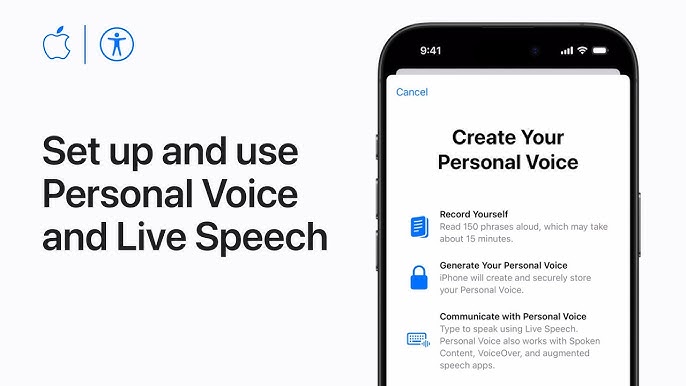
If you or a loved one is visually impaired, VoiceOver is a powerful built-in screen reader on iPhone and iPad that helps you navigate your device without needing to see the screen.
In this blog post, you’ll learn how to navigate your iPhone or iPad with VoiceOver, including how to enable it, use key gestures, and customize it for your needs.
What Is VoiceOver on iPhone and iPad?
VoiceOver is Apple’s accessibility feature that reads out what’s on the screen. From reading emails and text messages to identifying app icons, it makes your iPhone or iPad completely usable with gestures and spoken feedback.
How to Turn On VoiceOver
There are several ways to enable VoiceOver on iOS or iPadOS:
Method 1: Use Siri
Just say:
🗣️ “Hey Siri, turn on VoiceOver”
or
🗣️ “Hey Siri, turn off VoiceOver” to disable it later.
Method 2: Use Settings
- Open Settings
- Tap Accessibility
- Under Vision, tap VoiceOver
- Toggle the switch ON
You can also go to Settings > Accessibility > Accessibility Shortcut and choose VoiceOver for quick triple-click access.
Key VoiceOver Gestures You Need to Know
Once VoiceOver is enabled, the way you interact with your screen changes. Here are some essential gestures:
| Gesture | Action |
|---|---|
| Tap once | Select an item (VoiceOver reads it) |
| Double-tap | Activate the selected item |
| Swipe right or left | Move to the next or previous item |
| Three-finger swipe up/down | Scroll up or down |
| Two-finger double tap | Start/stop an action (like music) |
| Three-finger double tap | Toggle speech on/off |
Navigating the iPhone or iPad Screen
Here’s how you can use VoiceOver to navigate your device:
- Home Screen: Swipe right or left to move between apps. Double-tap to open an app.
- Control Center: Swipe down from the top right (iPhone with Face ID) or up from the bottom (older models). Use swipe gestures to select and activate.
- App Navigation: Use swipe gestures to explore buttons, text, or links. VoiceOver will describe each item aloud.
How to Customize VoiceOver Settings
To make VoiceOver work best for you, customize its settings:
- Go to Settings > Accessibility > VoiceOver
- Adjust features like:
- Speaking rate
- Verbosity
- Rotor settings
- Braille display support
- VoiceOver Recognition (reads text on images and unlabeled buttons)
Try VoiceOver Practice Mode (under VoiceOver settings) to explore gestures safely without activating anything.
What Is the Rotor in VoiceOver?
The Rotor is a virtual dial you turn by rotating two fingers on the screen, like turning a knob. It allows you to quickly change VoiceOver settings such as:
- Speaking rate
- Navigation options (e.g., by words, lines, headings, links)
- Text selection
- Containers (for moving between sections of an app)
Once set, swipe up or down to use the selected rotor function.
Who Should Use VoiceOver?
VoiceOver is designed for users who:
- Are blind or have low vision
- Prefer audio-based navigation
- Need assistance identifying on-screen content
- Want hands-free, screen-free control of their iOS device
Whether you’re visually impaired or helping someone who is, VoiceOver on iPhone and iPad offers full control of the device without needing to see the screen. With a little practice, you can access apps, browse the web, send texts, and more all through intuitive gestures and voice feedback.
Make accessibility a part of your daily digital life by exploring what VoiceOver can do.
How to reset your Mac login password

How to Reset Your Mac Login Password – Step-by-Step Guide (2025)
Forgot your Mac password and locked out of your device? Don’t worry. Whether you’re using a MacBook Air, MacBook Pro, or iMac, resetting your Mac login password is easier than you think.
In this step-by-step guide, we’ll show you how to reset your Mac password, even if you don’t remember your Apple ID. This tutorial works for macOS Sonoma, Ventura, and most recent macOS versions.
Why You Might Need to Reset Your Mac Login Password
- You forgot your Mac user password
- Your Mac password isn’t working after an update
- You’ve inherited or bought a second-hand Mac
- You need to access a locked admin account
Method 1: Reset Mac Password Using Your Apple ID
If you linked your Apple ID to your Mac login, this is the easiest method.
- On the login screen, enter any password 3 times.
- You’ll see a message: “If you forgot your password, you can reset it using your Apple ID.”
- Click Reset it using your Apple ID.
- Enter your Apple ID email and password.
- Follow the on-screen prompts to create a new Mac login password.
🔒 Your keychain (saved passwords) may be reset if the system suspects it’s compromised.
Method 2: Reset Mac Password Using macOS Recovery (No Apple ID Needed)
If Apple ID reset is not an option:
Step-by-step:
- Shut down your Mac.
- Press and hold Power button (for M1/M2/M3 Macs) or Command + R (for Intel Macs) until the Apple logo appears to enter macOS Recovery.
- In the macOS Utilities window, select Terminal from the menu bar.
- Type the following command and press Enter: nginxCopyEdit
resetpassword - The Reset Password window will open. Select the user account you want to change.
- Create a new password, verify it, and add a password hint.
- Click Save, then Restart your Mac.
Method 3: Use Another Admin Account (If Available)
If your Mac has multiple users with admin rights:
- Log in to another admin account.
- Go to System Settings > Users & Groups.
- Select the locked account > Click Reset Password.
- Enter the new password, confirm it, and save.
Tip: Always keep an admin account with known credentials as a backup.
Bonus Tip: How to Avoid Future Lockout
- Use Touch ID (if available) for easy login.
- Enable FileVault recovery key (System Settings > Privacy & Security).
- Sync your Apple ID with your Mac login account.
- Regularly note down your credentials or store them in a secure password manager.
Common Issues & Fixes
| Problem | Solution |
|---|---|
| Forgot Mac login password | Use Apple ID or Recovery Mode |
| Mac password not working after update | Boot into Recovery and reset manually |
| Reset Mac password without Apple ID | Use Terminal via Recovery |
| Keychain asks for old password | Create a new login keychain after reset |
Being locked out of your Mac can feel frustrating, but Apple provides several built-in tools to help you recover. Whether you choose to reset your Mac login password using your Apple ID or through macOS Recovery, you’ll be back in quickly with the right steps.
Be sure to back up your Mac and store credentials securely to prevent future access issues.
How to back up your iPhone to iCloud

How to Back Up Your iPhone to iCloud – Step-by-Step Guide (2025)
Backing up your iPhone is crucial to keeping your data safe. Whether you’re upgrading to a new device, troubleshooting issues, or just protecting your photos and messages, iCloud backup ensures your iPhone data is securely stored online.
In this guide, we’ll walk you through how to back up your iPhone to iCloud in just a few simple steps—no cables, no computers needed.
Why You Should Back Up Your iPhone to iCloud
Before we dive into the how-to, here are a few reasons why you should back up your iPhone:
- Protect your data from loss or damage
- Restore content on a new or reset device
- Automatically save photos, contacts, messages, app data, and more
- Peace of mind your memories and files are safe in the cloud
Step-by-Step: How to Back Up iPhone to iCloud
Step 1: Connect to a Wi-Fi Network
To perform an iCloud backup, your iPhone must be connected to Wi-Fi. Cellular networks typically do not support full backups due to size limitations.
- Open Settings
- Tap Wi-Fi
- Select a network and enter the password if needed
Step 2: Turn On iCloud Backup
- Open the Settings app
- Tap your Apple ID name at the top of the screen
- Go to iCloud
- Tap iCloud Backup
- Toggle iCloud Backup ON
Once turned on, your iPhone will automatically back up daily when:
- It’s connected to Wi-Fi
- Plugged into power
- The screen is locked
Step 3: Manually Back Up Your iPhone Now
Want to back up immediately? Here’s how:
- Go to Settings > [your name] > iCloud > iCloud Backup
- Tap Back Up Now
Depending on the size of your data and internet speed, the backup may take a few minutes to complete.
Step 4: Check Your Backup Status
After the backup finishes:
- Return to Settings > iCloud > iCloud Backup
- Under Last Successful Backup, you’ll see the time and date of your last backup
What Gets Backed Up to iCloud?
iCloud backs up:
- Photos & videos (if iCloud Photos is off)
- App data and settings
- iMessages, SMS, and MMS
- Device settings (Wi-Fi, wallpapers, Home screen layout)
- Visual Voicemail password (if supported)
- Health and Activity data (requires encrypted backup)
- Purchase history from App Store, Music, TV, and Books
Tips for Managing iCloud Storage
Apple offers 5GB of free iCloud storage, but this fills up quickly. Here’s how to manage or upgrade:
- Go to Settings > [your name] > iCloud > Manage Account Storage
- Tap Change Storage Plan to upgrade (e.g., 50GB, 200GB, or 2TB)
- Delete old backups or unused app data to free space
Bonus: How to Restore from iCloud Backup
If you get a new iPhone or reset your current one:
- Turn on the device and follow the setup steps
- On the Apps & Data screen, tap Restore from iCloud Backup
- Sign in with your Apple ID
- Choose the most recent backup to restore from
Backing up your iPhone to iCloud is one of the easiest and most effective ways to protect your data. With just a few taps, you can ensure your photos, contacts, and app settings are safe—no matter what happens.
Make it a habit to check your iCloud backups regularly or enable auto-backup so you never lose important data again.
How to take a Hearing Test and turn on the Hearing Aid feature

If you’re having trouble hearing clearly or want to personalize your AirPods or headphones to your unique hearing needs, your iPhone has built-in tools that can help. In this guide, we’ll show you how to take a hearing test and activate the Hearing Aid feature on your iPhone, step by step. Whether you’re using AirPods, Beats, or other supported headphones, this is an easy and powerful way to boost your audio experience.
What Is the iPhone Hearing Aid Feature?
Apple offers a feature called Headphone Accommodations, designed to enhance soft sounds and adjust certain audio frequencies for your hearing. This is especially useful for people with mild to moderate hearing difficulties.
You can even take a hearing test and use those results to create a personalized audio profile for your device.
Step-by-Step: How to Take a Hearing Test on iPhone
Option 1: Use the Built-In Audiogram (From Apple Health)
- Open the Health app on your iPhone.
- Tap Browse → Search for Hearing.
- Tap Audiogram → Import an existing hearing test if you’ve done one with a health provider.
- Once added, your iPhone can use this audiogram to optimize sound output.
Option 2: Use the Mimi Hearing Test App
If you don’t have an audiogram:
- Download the Mimi Hearing Test app from the App Store.
- Follow the on-screen instructions to complete the test (takes about 5–10 minutes).
- Once finished, tap “Save to Health” to export the audiogram to your Apple Health data.
How to Turn On the Hearing Aid Feature (Headphone Accommodations)
Once your audiogram is in the Health app, follow these steps:
- Open Settings on your iPhone.
- Tap Accessibility → then Audio/Visual.
- Tap Headphone Accommodations.
- Toggle the switch to ON.
- Tap Custom Audio Setup.
- Choose Use Audiogram or manually adjust the settings for voice, music, or phone calls.
Apple will now optimize the audio output across supported devices (like AirPods Pro, AirPods Max, or Beats) based on your hearing profile.
Bonus Tip: Live Listen – Turn Your iPhone into a Microphone
Another amazing accessibility feature is Live Listen, which turns your iPhone into a remote mic and sends sound directly to your AirPods or Beats.
Here’s how to enable it:
- Go to Settings → Control Center.
- Tap the + next to Hearing.
- Open Control Center and tap the Ear icon.
- Tap Live Listen to turn it on — now your iPhone will capture nearby sounds and send them to your headphones.
Why Use Hearing Features on iPhone?
- Enhanced clarity for calls and media
- Personalized audio tuning
- Early detection of hearing loss
- Improved quality of life and communication
Apple’s hearing tools are powerful and user-friendly. Whether you’re just curious about your hearing health or need help understanding speech more clearly, the iPhone can act like a basic hearing aid when combined with AirPods and accessibility settings.
If you want better sound clarity without the cost of traditional hearing aids, this is one of the best solutions available today.
How to remove and replace the ear tips on your AirPods Pro
Removing the Ear Tips
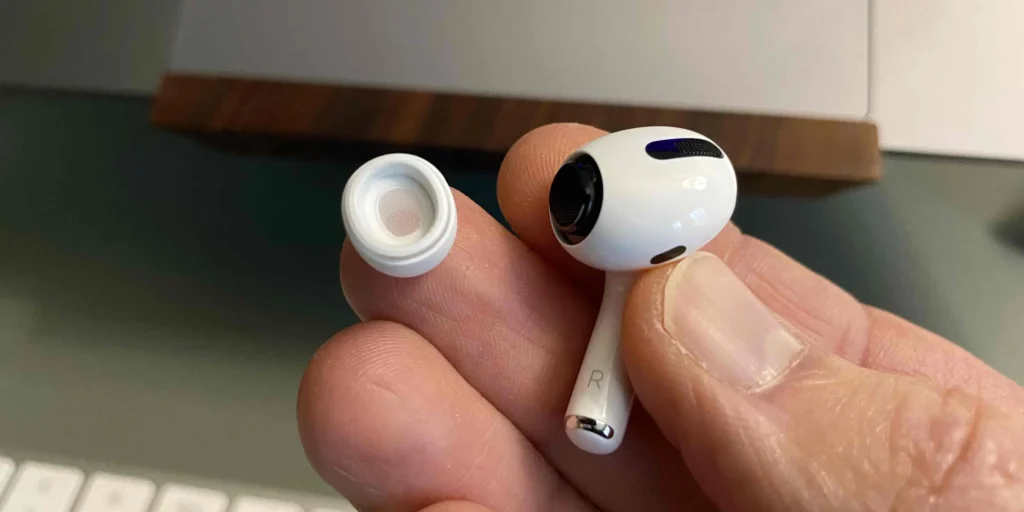
- Grip the silicone tip firmly. Use your fingertips (not the stem of the AirPod) to hold the rubber base of the tip.
- Pull gently but steadily. Grip and tug directly outward until the tip snaps off. It should detach with a noticeable click.
Attaching a New or Different-Sized Tip
- Select the desired replacement tip. AirPods Pro come with small, medium, and large tips.
- Align the oval opening. Match the ear tip’s oval connector with the AirPod’s jet nozzle.
- Push until it clicks. Apply gentle pressure until the tip firmly snaps into place—move it slightly to ensure it’s seated.
Checking for a Good Fit
- Ear Tip Fit Test (iOS):
- Connect your AirPods Pro to your iPhone.
- Go to Settings → Bluetooth, tap the ⓘ next to your AirPods.
- Tap Ear Tip Fit Test, then Continue and press Play. The test confirms if you have a proper seal.
- Manual check: If sound seems muffled or you experience inconsistent bass, try a different-sized tip for a better seal.
Tips & Care
- Clean when switching: Gently wipe off any earwax or debris using a soft, dry, lint-free cloth.
- Replace every few months if tips start stretching or lose their sticky fit—Apple suggests regular replacement for hygiene and sound quality.
- Keep your set: Always store the removed tips (if clean) in a small case to avoid losing them.
Quick Recap
| Step | Action |
|---|---|
| 1 | Pull ear tip straight off |
| 2 | Match and push new tip on until it clicks |
| 3 | Test fit using iOS or by feel |
Switching ear tips is a simple process that can significantly improve comfort and sound isolation. Need help choosing the right size or troubleshooting fit issues? Just let me know!
How to use Safety Check on your iPhone

How to Use Safety Check on Your iPhone: A Step-by-Step Guide
Apple’s Safety Check feature is designed to help you review and manage the people and apps that have access to your information and devices. Here’s a step-by-step guide on how to use Safety Check on your iPhone:
What is Safety Check?
Safety Check is a feature introduced in iOS 15 that allows you to quickly review and manage the people and apps that have access to your information and devices. It’s an essential tool for maintaining your digital safety and security.
Step 1: Access Safety Check
- Go to Settings: Open the Settings app on your iPhone.
- Tap on Your Name: Tap on your name at the top of the screen.
- Select Emergency SOS: Tap on “Emergency SOS” and then select “Safety Check.”
Step 2: Review and Manage Sharing
- People: Review the people who have access to your location, photos, and other information.
- Apps: Review the apps that have access to your information and devices.
- Manage Sharing: Manage sharing settings for each person or app.
Step 3: Emergency Reset
- Emergency Reset: If you’re in a situation where you need to quickly cut off access to your information and devices, use the Emergency Reset feature.
- Confirm: Confirm that you want to reset your sharing settings and cut off access.
Step 4: Review and Update Settings
- Review Settings: Regularly review your Safety Check settings to ensure you’re sharing information with the right people and apps.
- Update Settings: Update your settings as needed to maintain your digital safety and security.
Tips and Best Practices
- Regularly Review Settings: Regularly review your Safety Check settings to ensure you’re sharing information with the right people and apps.
- Use Strong Passwords: Use strong passwords and two-factor authentication to protect your Apple ID and devices.
- Be Cautious with Sharing: Be cautious when sharing information with others, and only share what’s necessary.
By following these steps and tips, you can use Safety Check to maintain your digital safety and security on your iPhone. Stay safe and secure!
How to use Find My on iPhone and iPad
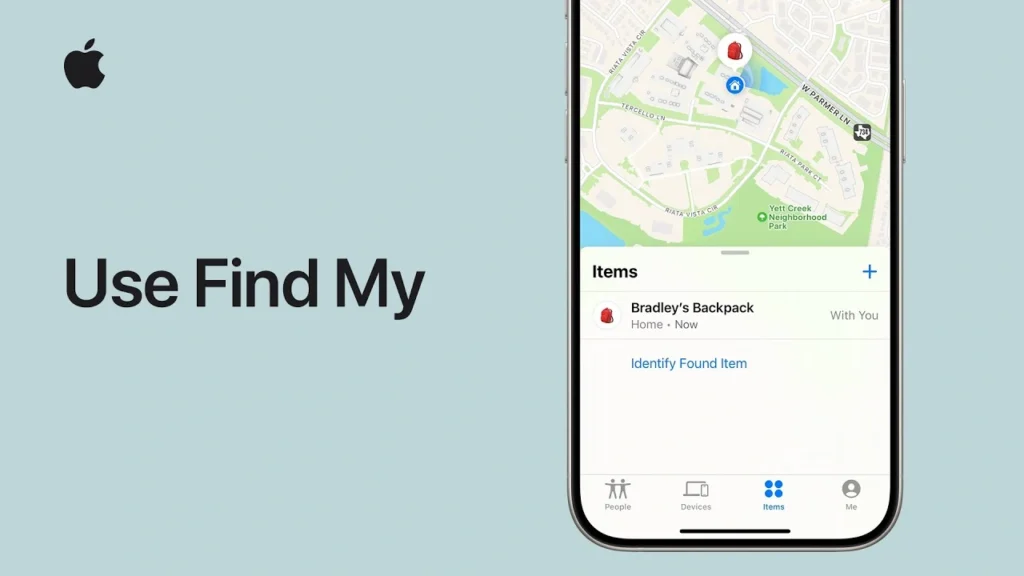
Losing your iPhone or iPad can be a stressful experience, but with Apple’s Find My feature, you can locate and recover your device. Here’s a step-by-step guide on how to use Find My on iPhone and iPad:
Step 1: Enable Find My on Your Device
- Go to Settings: Open the Settings app on your iPhone or iPad.
- Tap on Your Name: Tap on your name at the top of the screen.
- Select Find My: Tap on “Find My” and toggle on “Find My iPhone” or “Find My iPad.”
- Enable Location Services: Make sure Location Services are enabled on your device.
Step 2: Locate Your Device on a Map
- Open Find My App: Open the Find My app on another Apple device or visit (link unavailable) on a web browser.
- Sign in with Apple ID: Sign in with your Apple ID and password.
- Select Your Device: Select the device you want to locate from the list of devices.
- View on Map: Your device’s location will be displayed on a map.
Step 3: Use Find My Features
- Play a Sound: If your device is nearby, you can play a sound to help you locate it.
- Lost Mode: If your device is lost or stolen, you can put it in Lost Mode to lock it and display a custom message.
- Erase Device: If you’re unable to recover your device, you can erase it remotely to protect your data.
Step 4: Recover Your Device
- Use Find My to Locate: Use the Find My app or (link unavailable) to locate your device on a map.
- Contact Authorities: If your device is stolen, contact local authorities and provide them with the device’s serial number and location information.
- Recover Your Device: If you’re able to recover your device, you can restore it from a backup or set it up as new.
Tips and Best Practices
- Enable Two-Factor Authentication: Enable two-factor authentication on your Apple ID account to add an extra layer of security.
- Keep Your Device Up-to-Date: Regularly update your device’s software to ensure you have the latest security patches and features.
- Use a Strong Passcode: Use a strong passcode or password to protect your device and data.
By following these steps and tips, you can use Find My to locate and recover your iPhone or iPad if it’s lost or stolen. Stay safe and secure!
How to use iPhone Mirroring on Mac
If you’ve ever wanted to control your iPhone directly from your Mac, iPhone Mirroring on macOS makes it easier than ever. With the latest Apple updates, users can now view and interact with their iPhone screen seamlessly on a Mac, enabling multitasking, faster communication, and productivity like never before.
In this guide, we’ll walk you through how to set up and use iPhone Mirroring on a Mac, its requirements, and how to make the most of this powerful feature.
What Is iPhone Mirroring?
iPhone Mirroring allows you to wirelessly view and control your iPhone’s screen on your Mac. You can respond to messages, view notifications, drag and drop files, and use apps—all from your Mac, without touching your iPhone.
System Requirements
Before getting started, make sure the following conditions are met:
- macOS Sequoia or later
- iOS 18 or later
- Mac and iPhone must use the same Apple ID
- Both devices must have Bluetooth, Wi-Fi, and Handoff enabled
- iPhone should be nearby and unlocked
Step-by-Step Guide: How to Use iPhone Mirroring on Mac
Step 1: Update to the Latest Software
Ensure your devices are running:
- iOS 18 or later on iPhone
- macOS Sequoia or later on Mac
To update:
- On iPhone:
Settings > General > Software Update - On Mac:
System Settings > General > Software Update
Step 2: Enable Bluetooth, Wi-Fi & Handoff
Both devices must be connected via:
- Bluetooth
- Wi-Fi
- Handoff
To enable on iPhone:
- Go to
Settings > General > AirPlay & Handoff - Turn on Handoff
To enable on Mac:
- Go to
System Settings > General > AirDrop & Handoff - Toggle on Allow Handoff
Step 3: Sign in to the Same Apple ID
Make sure both devices are using the same Apple ID.
On iPhone:
Go to Settings > [Your Name]
On Mac:
Go to System Settings > Apple ID
Step 4: Open iPhone Mirroring on Mac
- On your Mac, open the Control Center
- Click on the iPhone Mirroring icon
- Select your iPhone from the list
- Your iPhone screen will appear in a separate window
Step 5: Use Your iPhone from Your Mac
Once mirrored, you can:
- View and respond to iPhone notifications
- Use keyboard and mouse to control apps
- Drag and drop files between Mac and iPhone
- Open apps, browse Safari, and more
Pro Tips for iPhone Mirroring
- Use a trackpad or Magic Mouse for touch-like gestures
- Use Spotlight search on Mac to launch iPhone Mirroring faster
- For privacy, lock or hide the mirrored screen when not in use
- This works great with iMessage, Notes, Safari, and Photos
Why iPhone Mirroring Is a Game-Changer
This feature bridges the gap between mobile and desktop workflows, enhancing:
- Productivity for multitaskers
- Seamless communication for remote work
- Effortless app access for creators and developers
- Unified experience across Apple devices
How to FIX Laptop Hang and Freeze Problem Solution in Windows 10/11

Is your Windows 10 or 11 laptop hanging or freezing frequently? Whether it’s slow response, laggy performance, or complete system freeze, these issues can seriously disrupt productivity. Fortunately, most laptop freezing problems can be fixed with simple software and hardware checks.
In this guide, we’ll walk you through step-by-step solutions to fix laptop hang and freeze issues on Windows 10/11. These fixes are beginner-friendly and you don’t need advanced tech skills to follow along.
Common Causes of Laptop Hanging in Windows
- Insufficient RAM or storage space
- Background processes consuming system resources
- Corrupted system files
- Malware or viruses
- Outdated drivers or Windows updates
- Faulty hardware (HDD, RAM, GPU)
Step-by-Step Guide to Fix a Freezing or Hanging Laptop
Step 1: Restart Your Laptop
A simple reboot can clear temporary glitches and stuck background tasks.
How to do it:
- Press
Ctrl + Alt + Delete - Click the power icon and select Restart
Step 2: Check for System Updates
Running outdated Windows versions can cause instability.
Steps:
- Go to Settings > Windows Update
- Click Check for Updates
- Install all available updates
- Restart your PC
Step 3: Free Up Disk Space
Low storage slows performance and causes freezing.
How to clean up:
- Open Settings > System > Storage
- Use Storage Sense or manually delete temporary files
- Empty Recycle Bin
Step 4: Disable Startup Programs
Too many startup apps can overload your system at boot.
To disable them:
- Press
Ctrl + Shift + Escto open Task Manager - Go to Startup tab
- Disable unnecessary apps
Step 5: Scan for Malware or Viruses
Malware can slow down your system and cause hangs.
Use Windows Defender or a trusted antivirus:
- Go to Windows Security > Virus & Threat Protection
- Click Quick Scan or Full Scan
- Remove any threats found
Step 6: Update Drivers
Outdated or corrupt drivers cause freezes, especially graphics or chipset drivers.
Steps:
- Right-click the Start button > Device Manager
- Expand Display adapters, Sound, and Network
- Right-click each device > Update driver
Step 7: Run System File Checker (SFC)
This checks and repairs corrupted system files.
To run SFC:
- Type
cmdin the Windows search bar - Right-click Command Prompt > Run as Administrator
- Type:
sfc /scannowand press Enter - Wait for the scan to complete and follow instructions
Step 8: Perform a Clean Boot
This helps identify software conflicts.
Steps:
- Type
msconfigin the search bar - Go to Services tab > Check Hide Microsoft services
- Click Disable All
- Go to Startup > Open Task Manager and disable all items
- Restart your PC
Step 9: Check RAM and HDD Health
Faulty RAM or hard drive can freeze your laptop.
- Use
Windows Memory Diagnosticto check RAM - Use
chkdskor third-party tools like CrystalDiskInfo to check HDD/SSD health
Step 10: Reset or Reinstall Windows (Last Resort)
If nothing works, a system reset may help.
Steps:
- Go to Settings > System > Recovery
- Choose Reset this PC
- Select Keep my files or Remove everything