

Tech Solutions
Explore practical tech solutions, smart tools, digital services, and innovative ideas designed to solve everyday and business challenges.
How to Update your Apple watch software
Here’s how to do it:

Updating via iPhone:
- Ensure your Apple Watch is connected to Wi-Fi or paired with your iPhone.
- Open the Watch app on your iPhone.
- Tap on “General” > “Software Update”.
- If an update is available, tap “Download and Install”.
- Follow the on-screen instructions to complete the update.
Requirements:
- Your Apple Watch needs to be at least 50% charged.
- Keep your Apple Watch and iPhone nearby during the update process.
Tips:
- Regularly check for updates to ensure you have the latest features and security patches.
- Make sure your iPhone is running the latest version of iOS.
How to cast using my iPhone with smart screen
Casting from your iPhone to a smart screen is a straightforward process.
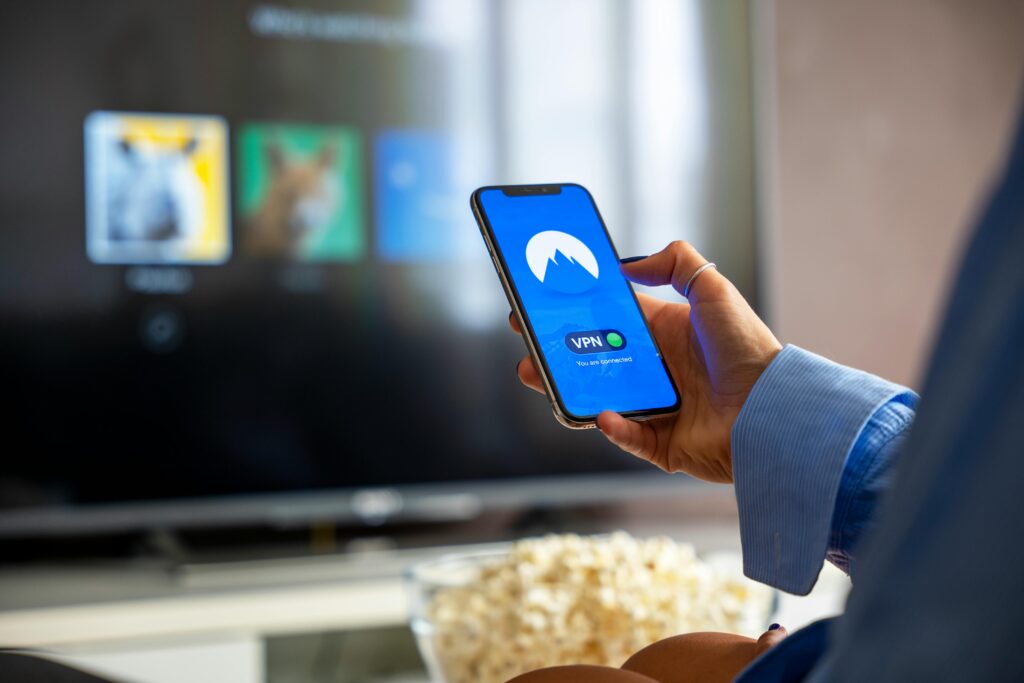
Here’s how you can do it:
Using AirPlay:
- Make sure your devices are connected to the same Wi-Fi network.
- Open the Control Center on your iPhone (swipe down from the top right corner of the screen).
- Tap on “Screen Mirroring” (it looks like two overlapping rectangles).
- Select your smart screen’s name from the list of available devices.
- Enter the AirPlay passcode if prompted.
Using Other Casting Methods:
- Check if your smart screen supports other casting technologies like Chromecast or Miracast.
- Download and install the relevant app (e.g., Google Home for Chromecast).
- Follow the app’s instructions to connect your iPhone to the smart screen.
Troubleshooting:
- Ensure both devices are on the same Wi-Fi network.
- Restart your iPhone and smart screen if you encounter issues.
- Check for software updates on both devices.
Spend a Dollar on Upcoming iPhone 17, and How to Save More
It seems like there’s a bit of confusion. You can’t spend a dollar on an upcoming iPhone 17 since it’s not possible to purchase something that hasn’t been announced or released, and $1 wouldn’t cover the cost anyway.
If you’re interested in purchasing an iPhone:
- Check official Apple announcements: Keep an eye on Apple’s website or authorized resellers for new iPhone releases.
- Compare prices: Research and compare prices from different retailers.
- Consider refurbished or older models: You might find deals on previous iPhone models.
Saving money on iPhones:
- Trade-in programs: Apple and carriers often offer trade-in deals.
- Discounts and promotions: Look for special offers from retailers.
- Payment plans: Consider financing options or installment plans.
Running macOS and Windows 10 on the Same Computer
To run macOS and Windows 10 on the same computer, you have two main options

- Dual-Booting:
- Use Apple’s Boot Camp Assistant (for Intel-based Macs) to create a separate partition for Windows 10.
- Install Windows 10 on the partition and restart your Mac to switch between macOS and Windows 10.
- Virtualization:
- Install virtualization software like Parallels Desktop, VMware Fusion, or VirtualBox on your Mac.
- Create a virtual machine (VM) and install Windows 10 within the VM.
- Run Windows 10 alongside macOS without restarting your Mac.
Both options allow you to use macOS and Windows 10 on the same computer, but dual-booting requires restarting to switch between operating systems, while virtualization allows simultaneous use.