

Tech Solutions
Explore practical tech solutions, smart tools, digital services, and innovative ideas designed to solve everyday and business challenges.
Foldable laptop 2025, Samsung FlexNote
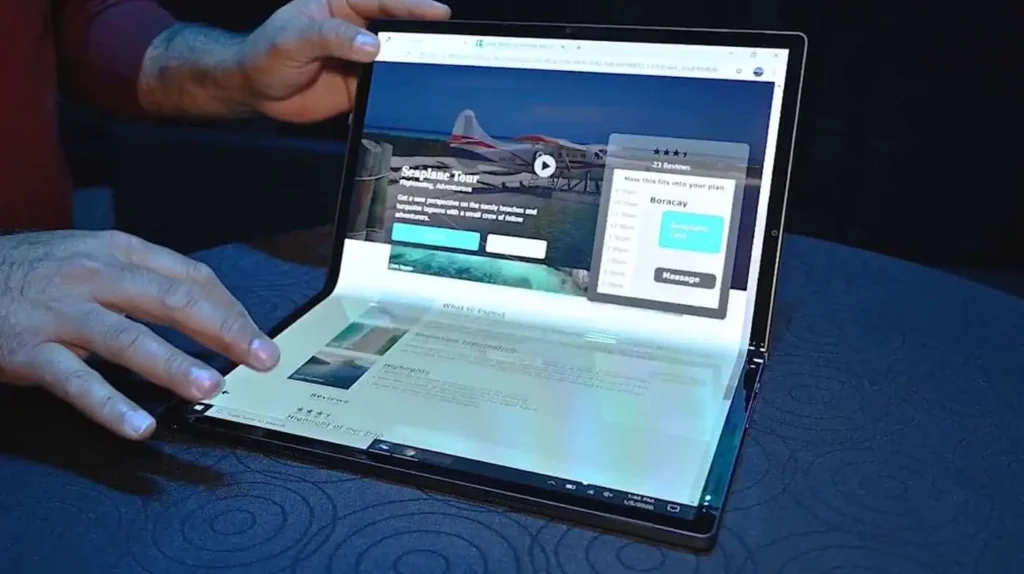
The Samsung FlexNote 2025 represents the next evolution in portable computing combining the power of a full laptop with the flexibility of a foldable display. Featuring a large 17.3-inch foldable OLED screen, this device can transform from a tablet into a traditional clamshell laptop or even a dual-screen setup.
Samsung has refined the FlexNote with improved hinge durability, a lighter magnesium frame, and optimized multitasking powered by the latest Intel Core Ultra or Qualcomm Snapdragon X Elite processors. It supports a magnetic keyboard, stylus input, and multi-window productivity making it ideal for hybrid workers and digital creators.
Whether you’re working, sketching, or streaming, the Samsung FlexNote adapts to your lifestyle with elegance and innovation.
Foldable Laptop Concept (2025) – Key Specs & Features
Although Samsung has not yet released a production version, their FlexNote concept, showcased at CES, offers a glimpse of what’s possible in foldable laptop technology.
- Display: 17-inch foldable Dynamic AMOLED 2X display when fully open, retracting into a 13-inch compact form factor. Dual-use: full screen or folded into virtual keyboard/workstation orientation.
- Protection by Design: When folded, the screen is tucked inward safeguarded from bumps and scratches.
- Form Factor: Transitions between tablet, laptop, and dual-screen setup ideal for portability and productivity
Expected Hardware (Based on Samsung’s Galaxy Book AI PCs)
While official hardware details await announcement, the FlexNote is expected to launch with specs aligning roughly with Samsung’s 2024–25 AI-powered Galaxy Book lineup.
- Processor (speculative): Latest Intel Core Ultra 7 / Ultra 5 (EVO class) or Snapdragon X Elite (Qualcomm).
- Display Resolution: High-resolution AMOLED panels with 500 nits brightness, 120 Hz+ refresh.
- Memory / Storage: Likely 16 GB to 32 GB RAM, 512 GB up to 1 TB NVMe SSD.
- Connectivity: Wi-Fi 6 / 6E, Bluetooth 5.x, Thunderbolt 4 / USB‑C PD, microSD expansion.
- Input & Extras: Support for stylus input (S Pen), multi-window mode, and Pro keyboard/dock accessories.
- Battery: Around 60–70 Wh cells with USB-C fast charging support (65 W+).
- Weight / Dimensions: Similar Galaxy Book weight range (~1.15–1.7 kg depending on size)
Apple Vision Pro 2, AR headset 2025

The Apple Vision Pro 2 is Apple’s latest advancement in augmented reality (AR) and spatial computing, expected to launch in late 2025. Building on the foundation of the original Vision Pro, this headset brings a powerful new Apple M4 chip, deeper Apple Intelligence (AI) integration, and a redesigned ergonomic fit for longer, more comfortable use.
Designed to blur the line between the digital and physical world, the Vision Pro 2 features dual micro‑OLED displays with ultra-high resolution, intuitive eye-tracking, and gesture control, allowing users to navigate apps, workspaces, and immersive experiences using just their hands and eyes—no physical controller needed.
Powered by visionOS 2 (upgradable to visionOS 26), it introduces eye-scrolling, real-time AI assistance, and advanced spatial interactions for developers, creatives, and enterprise users. It’s the perfect blend of performance, comfort, and futuristic AR technology in one sleek headset.
Apple Vision Pro 2 – AR Headset 2025 Key Specifications
| Category | Specification |
|---|---|
| Model | Apple Vision Pro 2 (2025) |
| Processor | Apple M4 chip (rumored) with upgraded Neural Engine |
| Display | Dual Micro‑OLED panels, ~23 million pixels combined, ~100Hz refresh rate |
| Operating System | visionOS 2 (upgradable to visionOS 26 with eye-scrolling support) |
| AI Features | Apple Intelligence integration, real-time gesture & eye tracking |
| Input Controls | Eye tracking, hand gestures, voice commands, and optional keyboard/trackpad |
| Sensors | LiDAR, ambient light sensor, 6 external cameras, TrueDepth, motion tracking |
| Audio System | Personalized Spatial Audio, beamforming mic array |
| Battery Life | ~3 hours typical use (improved from 2.5h) |
| Comfort | Redesigned strap for better weight distribution and prolonged wear |
| Biometrics | Optic ID (iris recognition for secure login) |
| Storage Options | Likely 256GB / 512GB / 1TB (based on Vision Pro 1) |
| Connectivity | Wi‑Fi 6, Bluetooth 5.3, USB-C battery connector |
| Weight | ~600–650 g (headset); battery ~353 g |
How to Set Up Dual Monitors on Windows and Mac
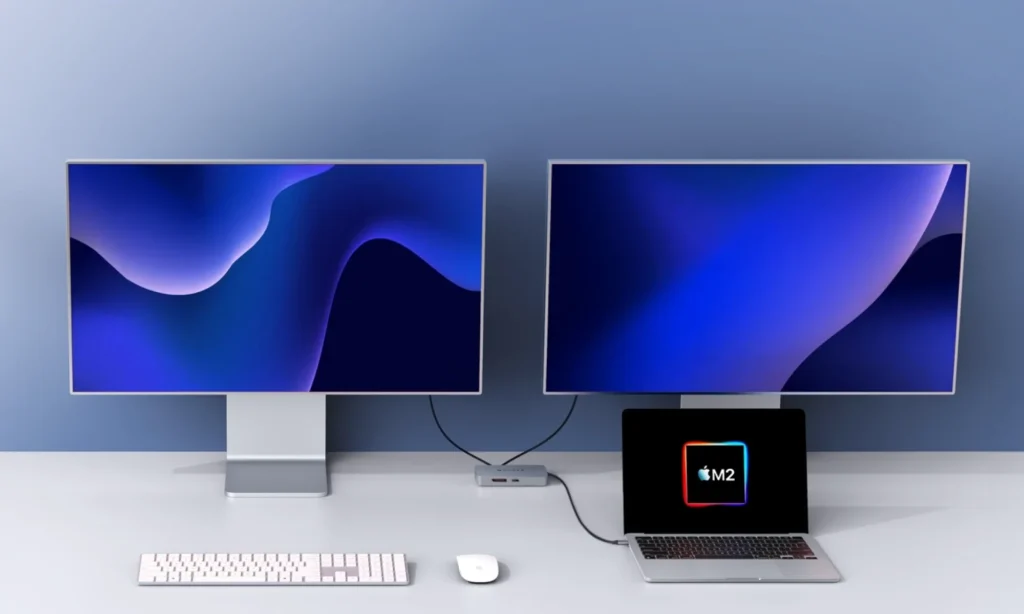
Learn how to set up dual monitors on your Windows PC or Mac. Boost your productivity with this easy step-by-step guide for multiple screen setup.
Adding a second monitor can transform your workspace. Whether you’re working from home, gaming, or multitasking, a dual-monitor setup enhances productivity and creates a more organized desktop experience.
In this guide, we’ll show you how to set up dual monitors on both Windows 10/11 and macOS, covering connection types, display settings, and troubleshooting tips.
Benefits of a Dual Monitor Setup
- Increase productivity with more screen real estate
- Simplify multitasking (email, docs, video calls)
- Better workflow for designers, editors, and coders
- Improved gaming and streaming experience
What You’ll Need
- A compatible computer with at least 2 video outputs (HDMI, DisplayPort, USB-C, VGA)
- Two monitors with matching cables
- Necessary adapters (if connecting HDMI to USB-C, for example)
How to Set Up Dual Monitors on Windows 10/11
Step 1: Connect the Second Monitor
- Plug the second monitor into an available port (HDMI, DisplayPort, VGA, USB-C).
- Make sure both monitors are powered on.
Step 2: Access Display Settings
- Right-click on the desktop → Display Settings
- You’ll see both monitors labeled as 1 and 2
Step 3: Choose Display Mode
Under Multiple displays:
- Duplicate – shows the same content on both screens
- Extend – expands the desktop across both screens (most popular)
- Second screen only – turns off the primary screen
Tip: Drag the monitor boxes to match their physical arrangement.
Step 4: Adjust Resolution and Orientation
- Scroll down to adjust each screen’s resolution
- Set primary monitor by clicking “Make this my main display”
How to Set Up Dual Monitors on Mac (macOS Ventura or Monterey)
Step 1: Connect the Second Display
- Use Thunderbolt, USB-C, HDMI, or a compatible adapter
- macOS will auto-detect the monitor once connected
Step 2: Open Display Settings
- Go to Apple Menu > System Settings > Displays
Step 3: Arrange Displays
- Drag monitors in the preview to match their real-world layout
- Move the white menu bar to the preferred primary display
Step 4: Adjust Resolution and Display Mode
- Choose Default for display or Scaled
- Enable Mirror Displays if you want identical output on both screens
For older Macs, use System Preferences > Displays
Supported Display Modes (Windows & Mac)
| Display Mode | Description | Best For |
|---|---|---|
| Extend | Spans your desktop across both monitors | Productivity & Multitasking |
| Duplicate/Mirror | Shows same screen on both monitors | Presentations |
| Second Screen | Uses only one monitor | Gaming or focus mode |
Common Issues and Fixes
Problem 1: Second Monitor Not Detected
- Check cable connections and power
- Click “Detect” in Display Settings (Windows)
- Restart your computer
Problem 2: Wrong Resolution
- Update graphics drivers (NVIDIA, AMD, Intel)
- Use display settings to manually adjust resolution
Problem 3: Monitor Flickering or Lag
- Try a different cable or port
- Set both monitors to same refresh rate if possible
Recommended Accessories
- HDMI Splitters & USB-C Hubs
- Monitor Arms or Dual Monitor Mounts
- Docking Stations for laptops (especially MacBooks)
Related posts
- 👉 How to Fix a Laptop That Keeps Freezing
- 👉 How to Prevent Your Laptop from Overheating
- 👉 How to Clean Up a Slow Laptop (Windows 10/11)
- 👉 Best Antivirus Tools for Windows and Mac (2025)
Setting up dual monitors is easier than ever, and the benefits are immediate especially for professionals, gamers, and remote workers. Whether you’re on Windows or macOS, this step-by-step guide will help you configure your setup the right way.
❓FAQs
Q1: Can I use a TV as a second monitor?
Yes! As long as it has HDMI input and your computer has HDMI output.
Q2: Can I mix monitor resolutions (e.g., 1080p + 4K)?
Yes, but it may affect display clarity and cursor movement.
Q3: What if my laptop has only one port?
Use a USB-C to HDMI hub or docking station to expand connectivity.
Best AI Tools for Content Creators (2025)
Best AI Tools for Content Creators in 2025
Meta Description: Discover the top AI tools for content creators in 2025 from writing and video editing to design and SEO. Boost productivity and creativity with AI.

Here’s a brief outline of the best AI tools content creators should be using in 2025:
1. ChatGPT (OpenAI) – For Writing & Brainstorming
Perfect for scripting, blog posts, emails, and social media captions. Offers advanced prompt support and tone customization.
2. Canva Magic Studio – For Visual Content Creation
AI-powered design suggestions, image editing, video creation, and social media templates – ideal for quick, branded visuals.
3. Runway ML – For Video Editing & Generation
Use text prompts to edit videos, remove backgrounds, and even generate new scenes with Gen-3 AI video tools.
4. Midjourney / DALL·E – For Image Generation
Create unique illustrations, thumbnails, or concept art using only text descriptions. Great for YouTube, blogs, or ad creatives.
5. Descript – For Podcasts & Video Editing
Edit videos and audio like a doc. Features include voice cloning, filler word removal, and screen recording.
6. SurferSEO – For SEO Content Optimization
Optimizes blog posts for keyword performance. Real-time suggestions improve ranking chances in Google search.
7. ElevenLabs – For AI Voice Generation
Convert text to speech with human-like voice quality. Ideal for audiobooks, narrations, or multilingual content.
8. Jasper – For Marketing Copy & Automation
AI writing assistant that creates landing pages, emails, ads, and product descriptions with high conversion potential.
9. Notion AI – For Planning & Productivity
Use it to automate content calendars, brainstorm article outlines, or summarize research materials in one place.
Also see this: “How to Use AI for Graphic Design”
How to use AI for Graphics Design
AI in graphic design refers to the use of machine learning algorithms and automation tools to perform design tasks such as image generation, logo creation, layout suggestions, and editing. These tools are designed to understand your creative input and assist or even automate parts of the design process.

Benefits of Using AI for Graphic Design
1. Saves Time and Effort
AI speeds up repetitive tasks like background removal, resizing, or color correction giving designers more time to focus on creativity.
2. No Design Experience Needed
Even non-designers can now create professional-looking graphics using user-friendly AI tools.
3. Personalization at Scale
AI can quickly generate multiple variations of a design tailored to specific audiences, platforms, or brand styles.
4. Cost-Efficient
Small businesses and startups can reduce design costs by using AI instead of hiring large creative teams for simple tasks.
Popular AI Tools for Graphic Design (2025)
Here are some of the best AI-powered design tools trending this year:
Canva AI
With Magic Design and AI writing tools, Canva makes it easy to generate complete social media posts, presentations, and graphics in minutes.
Adobe Firefly
Adobe’s generative AI lets you create artwork using text prompts, quickly modify images, or experiment with styles in Photoshop and Illustrator.
Fotor & Pixlr
Great for beginners, these platforms use AI for one-click image enhancement, background removal, and text-to-image generation.
Looka
Ideal for logo design just enter your brand name and industry, and Looka’s AI will generate multiple logo options instantly.
Midjourney / DALL·E / Runway
These AI models allow you to create hyper-realistic or imaginative images from simple text prompts perfect for visual storytelling.
How to Use AI in Your Design Workflow
Start with a Prompt Use natural language (e.g., “a modern logo for a tech startup”) in tools like Midjourney or Adobe Firefly to generate initial concepts. Choose & Customize Pick a style, color palette, or layout from the AI-generated options and refine them to match your brand identity. Incorporate Brand Elements Upload your logo, brand fonts, and color schemes to AI tools like Canva for consistent design across materials. Automate Repetitive Tasks Use AI to handle resizing for different platforms, content generation, or removing photo backgrounds. Review & Optimize for SEO When designing website or blog graphics, use AI to generate SEO-friendly alt text and optimize file sizes for faster loading.
SEO & Marketing Tip: AI for Visual Content Strategy
Visual content improves engagement and time on site. Use AI tools to:
Create infographics for blog posts Generate thumbnails for YouTube and social media Design email banners or ads quickly Add alt text using AI to boost image SEO Test different graphic variations (A/B testing)
Also see this: “Best AI Tools for Content Creators (2025)”
AI in graphic design isn’t here to replace designers it’s here to empower them. Whether you’re creating logos, social media graphics, or marketing materials, AI makes the process faster, smarter, and more accessible. Start integrating these tools today and take your creative projects to the next level.
How to Remove Malware from Your Computer (Complete Step-by-Step Guide 2025)
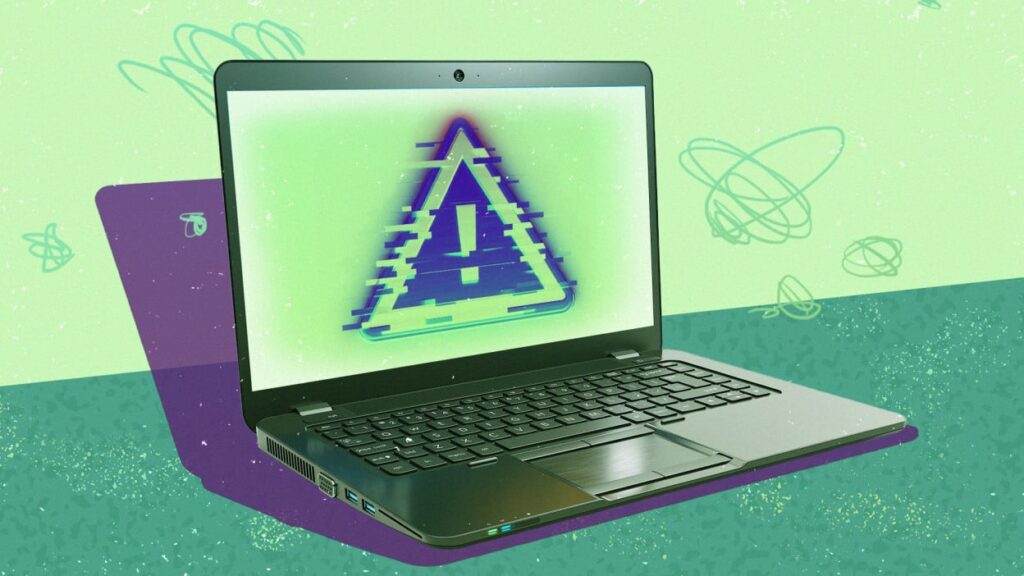
Learn how to remove malware from your computer quickly and safely. Follow this step-by-step malware removal guide for Windows and Mac to protect your system and data
Malware can slow down your computer, compromise your personal information, and even lock you out of your files. Whether it’s a virus, spyware, ransomware, or adware, taking quick action is critical.
In this guide, you’ll learn how to remove malware from your computer step-by-step, using free tools and safe methods for both Windows and macOS systems.
Signs Your Computer Might Be Infected
Before removing malware, here are some common warning signs:
- Slower system performance
- Frequent crashes or freezing
- Pop-up ads or browser redirects
- Unknown apps or toolbars installed
- Disabled antivirus or security warnings
Step-by-Step: How to Remove Malware from Your Computer
Step 1: Disconnect from the Internet
Unplug Ethernet or disable Wi-Fi. This prevents the malware from spreading, downloading more files, or sending your data to attackers.
Step 2: Boot into Safe Mode
Windows:
- Press Shift + Restart from the Start Menu.
- Go to Troubleshoot > Advanced Options > Startup Settings > Restart
- Select 4 or F4 for Safe Mode.
Mac:
- Turn off the Mac.
- Hold Shift while powering it on.
- Release once the Apple logo appears.
Step 3: Delete Temporary Files
Clearing temp files can help remove some malware and speed up scanning.
Windows:
- Open Run (Win + R) → type
temp,%temp%, andprefetch - Delete all files in those folders.
Mac:
- Use Finder > Go > Go to Folder → type
~/Library/Caches/and delete unneeded files.
Step 4: Run a Malware Scanner
Use trusted anti-malware tools. We recommend using two different scanners — one real-time antivirus and one dedicated malware remover.
Recommended Tools (Free):
- Malwarebytes – Excellent malware removal
- Microsoft Defender (Windows built-in)
- Bitdefender Free Edition
- ESET Online Scanner
- Avast or AVG (Free versions)
Related Post: Best Antivirus Tools for Windows and Mac in 2025
Step 5: Quarantine or Remove Threats
After the scan:
- Follow on-screen instructions to quarantine or remove threats.
- Restart your computer to complete the cleanup process.
Step 6: Uninstall Suspicious Programs
Go to your Control Panel (Windows) or Applications folder (Mac) and remove:
- Unknown or recently installed programs
- Browser toolbars or plugins you didn’t add
Use tools like Revo Uninstaller (Windows) to remove stubborn programs.
Step 7: Reset Web Browsers
Malware often hijacks your browser. Resetting your settings removes unwanted toolbars, search engines, and redirects.
Chrome:
- Go to Settings > Reset settings > Restore settings to their original defaults
Firefox:
- Go to Help > More Troubleshooting Info > Refresh Firefox
Safari (Mac):
- Go to Safari > Preferences > Extensions and remove unknown ones.
- Then Clear History and Website Data.
Step 8: Update Your Software and OS
After removal, ensure:
- Windows/macOS are fully updated
- Your browser and antivirus software are current
This closes security holes malware could exploit.
How to Prevent Malware in the Future
- Install Antivirus Software and keep it updated
- Avoid clicking unknown email links or attachments
- Don’t download pirated software
- Use a reliable ad blocker
- Back up your data regularly
Explore More Tips:
Malware removal doesn’t have to be overwhelming. With the right tools and careful steps, you can clean your system and regain full control. Make malware protection a regular part of your digital hygiene to avoid future infections.
FAQs
Q: Can I remove malware without antivirus software?
A: It’s possible, but not recommended. Manual removal is risky and may leave traces behind.
Q: What’s the difference between malware and a virus?
A: A virus is a type of malware. Malware includes all harmful software like ransomware, spyware, trojans, and more.
Q: What if the malware keeps coming back?
A: Try a full factory reset or consult a professional. Persistent infections may be deeply embedded.
Best Laptop pads for 2025
Best Laptop Cooling Pads for 2025 : Keep Your Laptop Cool and Fast

Looking for the best laptop cooling pads in 2025? Discover top-rated options that reduce overheating, boost performance, and extend laptop life. Ideal for gaming, work, and everyday use.
Why Use a Laptop Cooling Pad?
A cooling pad is one of the most effective tools to prevent laptop overheating. These accessories improve airflow, reduce internal temperatures, and enhance performance — especially during gaming, video editing, or heavy multitasking.
Whether you’re a student, gamer, or remote worker, here are the best laptop cooling pads in 2025 worth buying.
Best Laptop Cooling Pads in 2025
1. Thermaltake Massive V20 RGB
Best Overall for Performance & Style
Fans: 1 large 200mm fan Compatibility: Laptops up to 17 inches Highlights: Adjustable RGB lighting, metal mesh surface, ergonomic design Pros: Quiet fan, good heat dissipation, customizable colors Price Range: $40–$50
🔗 Ideal for: Gaming laptops, MacBooks, heavy tasks
2. Cooler Master Notepal X150 Spectrum
Best for Gamers
Fans: 1 ultra-large 160mm RGB fan Compatibility: Up to 17.3-inch laptops Highlights: Spectacular RGB effects, silent fan, durable build Pros: High airflow, sleek look, adjustable height Price Range: $45–$60
Perfect for: Streamers, content creators, and gaming setups
3. Klim Ultimate RGB Laptop Cooler
Best RGB Cooling Pad
Fans: 1 large 200mm fan Compatibility: Laptops up to 17 inches Highlights: Stylish RGB rim, quiet operation, metal grille Pros: Sturdy, plug-and-play, premium look Price Range: $40–$55
Also Recommended: How to prevent Over heating in Laptops
4. Havit HV-F2056 Slim Cooling Pad
Best for Portability
Fans: 3 ultra-quiet 110mm fans Compatibility: 15.6” to 17” laptops Highlights: Slim, lightweight, two adjustable height levels Pros: USB-powered, easy to carry, budget-friendly Price Range: $25–$35
Great for students, office workers, and on-the-go users
5. TopMate C12 Laptop Cooler
Best with LCD Display and Fan Control
Fans: 6 high-speed fans Compatibility: Up to 17.3-inch laptops Highlights: LCD screen, 6 adjustable speed settings, multiple angles Pros: Powerful airflow, quiet, customizable controls Price Range: $35–$50
6. TECKNET Laptop Cooling Pad N5
Best Budget Cooling Pad
Fans: 2 quiet fans Compatibility: 12”–17” laptops Highlights: Metal mesh surface, dual USB hub Pros: Lightweight, very affordable, plug-and-play Price Range: $15–$25
Budget Tip: Use in combination with power-saving settings for better cooling
7. Targus Chill Mat+ With 4-Port USB Hub
Best for Office Use
Fans: Dual cooling fans Compatibility: Up to 17-inch laptops Highlights: Built-in 4-port USB hub, ergonomic tilt Pros: Versatile, great for work setups Price Range: $35–$45
Where to Buy
These cooling pads are available on:
Amazon Best Buy Walmart Newegg Official brand websites
Which Cooling Pad Should You Choose?
If you’re a gamer or heavy user, go for Cooler Master Notepal X150 or TopMate C12. For lightweight portability, the Havit HV-F2056 or TECKNET N5 is ideal. Professionals working long hours should consider Targus Chill Mat+.
Investing in a quality cooling pad not only keeps your laptop cool but also extends its lifespan, boosts performance, and prevents unexpected shutdowns.
FAQs About Laptop Cooling Pads
Q1: Do cooling pads really work?
Yes, they significantly reduce internal temperatures by improving airflow.
Q2: Are they compatible with all laptops?
Most are compatible with laptops from 12 to 17 inches, but always check the specs.
Q3: Can a cooling pad fix an already overheating laptop?
It helps, but you should also clean your vents and reduce CPU load for better results.
How to prevent Over heating in Laptops
How to Prevent Overheating in Laptops — Best Tips to Keep Your Device Cool

Learn how to prevent your laptop from overheating with these practical tips. Improve performance, extend lifespan, and keep your laptop cool perfect for Windows and Mac users.
Laptop overheating is a common issue that affects both performance and hardware longevity. Whether you’re a gamer, student, or professional, maintaining a cool laptop ensures smooth operation and protects vital components from damage. In this blog post, we’ll explore how to prevent laptop overheating with easy-to-follow tips and best practices.
Why Do Laptops Overheat?
Before jumping into the solutions, it’s essential to understand why laptops overheat. Common causes include:
Blocked air vents Dust buildup inside the fans Poor placement (e.g., using on soft surfaces like beds or pillows) Running too many background processes Outdated software or drivers Heavy multitasking or gaming
How to Prevent Overheating in Laptops
1. Use a Hard, Flat Surface
Avoid placing your laptop on soft surfaces like beds or cushions. These block airflow and trap heat. Instead:
Use your laptop on a desk or laptop stand Try cooling pads with built-in fans for extra air circulation
2. Clean the Air Vents and Fans
Dust accumulation is one of the top causes of laptop overheating.
Use compressed air to clean vents regularly Schedule deep internal cleaning once every 6–12 months Avoid using vacuum cleaners which might cause static damage
3. Don’t Block the Laptop Vents
Ensure the airflow is never blocked:
Avoid placing objects near the exhaust vents Elevate the rear of the laptop slightly with a stand or small pads
4. Monitor System Temperature
Install temperature monitoring software to track your laptop’s heat levels:
Tools like HWMonitor, SpeedFan, or Core Temp Mac users can try iStat Menus or Mac Fan Control
Monitoring temperatures helps you act before overheating causes damage.
5. Limit Background Processes
Heavy multitasking or too many startup apps can stress the CPU and GPU:
Use Task Manager (Windows) or Activity Monitor (Mac) to close unused apps Disable unnecessary startup programs Switch to lightweight browsers like Brave or Edge
6. Update Drivers and BIOS
Outdated drivers or firmware can cause inefficient power usage:
Regularly update your graphics drivers, chipset drivers, and BIOS Use official tools from manufacturers like Dell, HP, Lenovo, or ASUS
7. Adjust Power Settings
Optimize your power plan to reduce unnecessary processing:
For Windows: Go to Settings > System > Power & Battery > Power Mode, choose Balanced or Power Saver For Mac: Use System Settings > Battery > Energy Saver
8. Use Integrated GPU When Possible
Switch to the integrated GPU for lighter tasks like browsing and streaming. This reduces heat output compared to the dedicated GPU.
🔗 Also Read: How to Fix Laptop Freezing in Windows 10/11/
9. Avoid Direct Sunlight and Hot Environments
Heat from the environment can drastically affect your laptop’s performance:
Always use your laptop in shaded, ventilated spaces Avoid leaving it in a hot car or under the sun
10. Keep Software and OS Updated
Operating system updates often include efficiency and cooling optimizations:
Install the latest Windows/macOS updates Enable automatic updates to stay protected and optimized
Signs Your Laptop is Overheating
Look out for these warning signs:
Fan running loud constantly System lag or freezing Sudden shutdowns Burnt smell from the vents Laptop feels hot to the touch, especially near the fan exhaust
If you notice these, apply the tips above or seek professional repair.
Keep Your Laptop Cool and Efficient
Preventing laptop overheating isn’t difficult — it just takes regular care and the right usage habits. By cleaning vents, managing background tasks, and using cooling accessories, you can improve your laptop’s performance, extend its lifespan, and avoid costly repairs.
Frequently Asked Questions (FAQs)
Q1: Is it safe to use a laptop while it’s charging?
A: Yes, but ensure it’s on a hard surface and well-ventilated to avoid overheating.
Q2: Can overheating damage a laptop permanently?
A: Yes, prolonged overheating can damage internal components like the motherboard, GPU, or battery.
Q3: How often should I clean my laptop vents?
A: Every 1–3 months, or more often if you use it in dusty environments.
How to Fix Laptop Freezing in Windows 10/11
How to Fix Laptop Freezing in Windows 10/11: A Complete Step-by-Step Guide
Is your Windows 10 or Windows 11 laptop constantly freezing, lagging, or becoming unresponsive? You’re not alone. Laptop freezing is a common issue faced by many users, often caused by software glitches, outdated drivers, or hardware limitations. In this guide, we’ll show you how to fix a laptop that keeps freezing on Windows 10/11 with effective step-by-step solutions.

Quick Tip: Regular system maintenance and keeping your software up-to-date can significantly reduce freezing issues.
Common Reasons Why Your Laptop Freezes
Before diving into the solutions, let’s explore the typical causes of freezing on Windows laptops:
Too many background processes Low disk space or memory (RAM) Corrupt system files Outdated or incompatible drivers Malware or virus infection Faulty hardware (like hard drives or RAM)
How to Fix Laptop Freezing in Windows 10/11
1. Restart Your Laptop
Sometimes, a simple reboot is enough to clear temporary glitches and memory overload.
Steps:
Press Ctrl + Alt + Delete Select the Power icon → Click Restart
2. Run a Full System Scan for Malware
Viruses and malware can hog system resources, leading to freezing.
Steps:
Open Windows Security Click Virus & threat protection Click Quick scan or Full scan
3. Disable Startup Programs
Too many apps running at startup can slow down your system.
Steps:
Press Ctrl + Shift + Esc to open Task Manager Go to Startup tab Disable unnecessary programs
4. Update Windows and Drivers
Outdated drivers and system software can cause compatibility issues and freezing.
Steps:
Go to Settings → Update & Security → Windows Update Click Check for updates
Also, update drivers:
Right-click Start → Device Manager Right-click on a device (e.g., Display Adapters) → Update driver
5. Free Up Disk Space
A full hard drive can drastically slow your laptop and cause it to freeze.
Steps:
Open Settings → System → Storage Use Storage Sense to delete temporary files and unused apps
You can also use Disk Cleanup:
Type Disk Cleanup in the Start menu Select drive and delete unnecessary files
6. Run System File Checker (SFC)
Corrupted system files may be the root cause of the freezing.
Steps:
Search Command Prompt, right-click and select Run as administrator Type: sfc /scannow → Press Enter Let Windows repair any damaged system files
7. Check RAM and Hardware Health
Faulty RAM or HDD/SSD can also cause freezing.
Steps:
Type mdsched.exe in Start → Run Windows Memory Diagnostic Restart and let it scan your memory For hard drives, use: chkdsk /f /r command in Command Prompt (admin)
8. Perform a Clean Boot
A clean boot helps you diagnose if background services are causing the issue.
Steps:
Press Windows + R, type msconfig Under Services, check Hide all Microsoft services, then click Disable all Go to Startup tab → Open Task Manager → Disable all startup items Restart your PC
9. Reset Windows (if all else fails)
If the issue persists, resetting Windows can help restore stability.
Steps:
Go to Settings → Update & Security → Recovery Click Reset this PC → Choose Keep my files or Remove everything
Backup important data before resetting!
✅Bonus Tips to Prevent Freezing in Future
Use an SSD instead of HDD for better performance Keep fewer browser tabs open Don’t overload your laptop with unnecessary software Keep drivers and system up-to-date regularly Clean dust from vents to prevent overheating
Fixing a laptop that freezes in Windows 10/11 may require trying several solutions. Start with basic fixes like updating drivers and cleaning up startup apps, and escalate to advanced tools like SFC or a full reset if necessary. By keeping your laptop optimized, you’ll enjoy a smoother, more productive experience.